Managing Integrations

The Integration tab in Settings connects the Web Agent to your other tools. You can import test cases, send results back, trigger runs from CI/CD, and give the agent knowledge of your product. Each integration needs only the credentials for that tool, and you can disconnect it at any time.
Open Integrations
- Click Settings in the left menu.
- Select the Integration tab. Integrations are grouped by category.
- Click an integration's card, fill in its fields, and save.
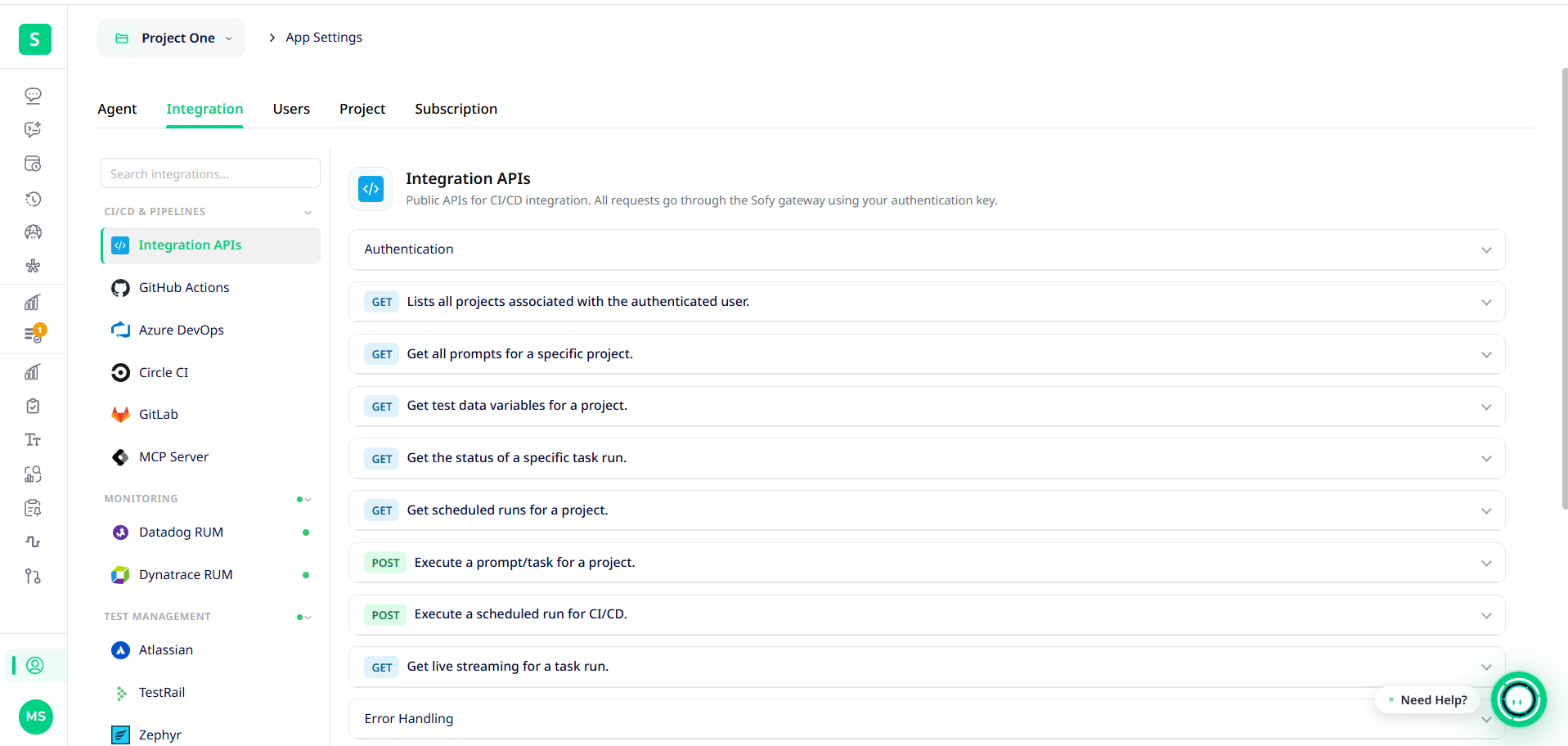
Category | Integrations | What you can do |
CI/CD | Integration APIs, GitHub Actions, Azure DevOps, Circle CI, GitLab, MCP Server | Trigger runs and schedules from your pipeline, or from Claude and other AI assistants (MCP) |
Monitoring | Datadog RUM, Dynatrace RUM | Bring in real user flows for Product Intelligence |
Test Management | Atlassian (Jira and Confluence), TestRail, Zephyr, X-ray | Import test cases as prompts, and use tickets and pages as product knowledge |
PR Management | GitHub, Azure DevOps, GitLab | Use pull requests to generate prompts |
Webhooks | Sofy Webhooks | Get a notification when a scheduled run finishes |
Extensions | Sofy AI Flows | Record a flow in Chrome and turn it into a prompt |
Fields for each integration
Integration | You will need |
TestRail | API URL, Username, API Key. Then click Load Projects and pick a project. |
Atlassian | Jira Server or Cloud, Sign-in URL, Email, Personal Access Token. Optionally, Jira project(s) and Confluence space(s). |
Zephyr | Base URL, Auth Method (token or basic), an API Token or a Username and Password, Tree ID (the repository folder ID) |
X-ray | Base URL, Client ID, Client Secret, Project Key |
Datadog RUM | API Key, Application Key, Site (for example datadoghq.com) |
Dynatrace RUM | Client ID, Client Secret, Account URN, Environment ID |
GitHub | Token, Owner or organization |
Azure DevOps | Personal Access Token, Organization, Project |
GitLab | Token. Optionally, your GitLab URL if it's self-managed. |
Sofy Webhooks | Webhook URL. Optionally, custom headers. |
GitHub, Azure DevOps and GitLab also have a Use MCP Server for prompt generation toggle.
TestRail: Import cases and sync results
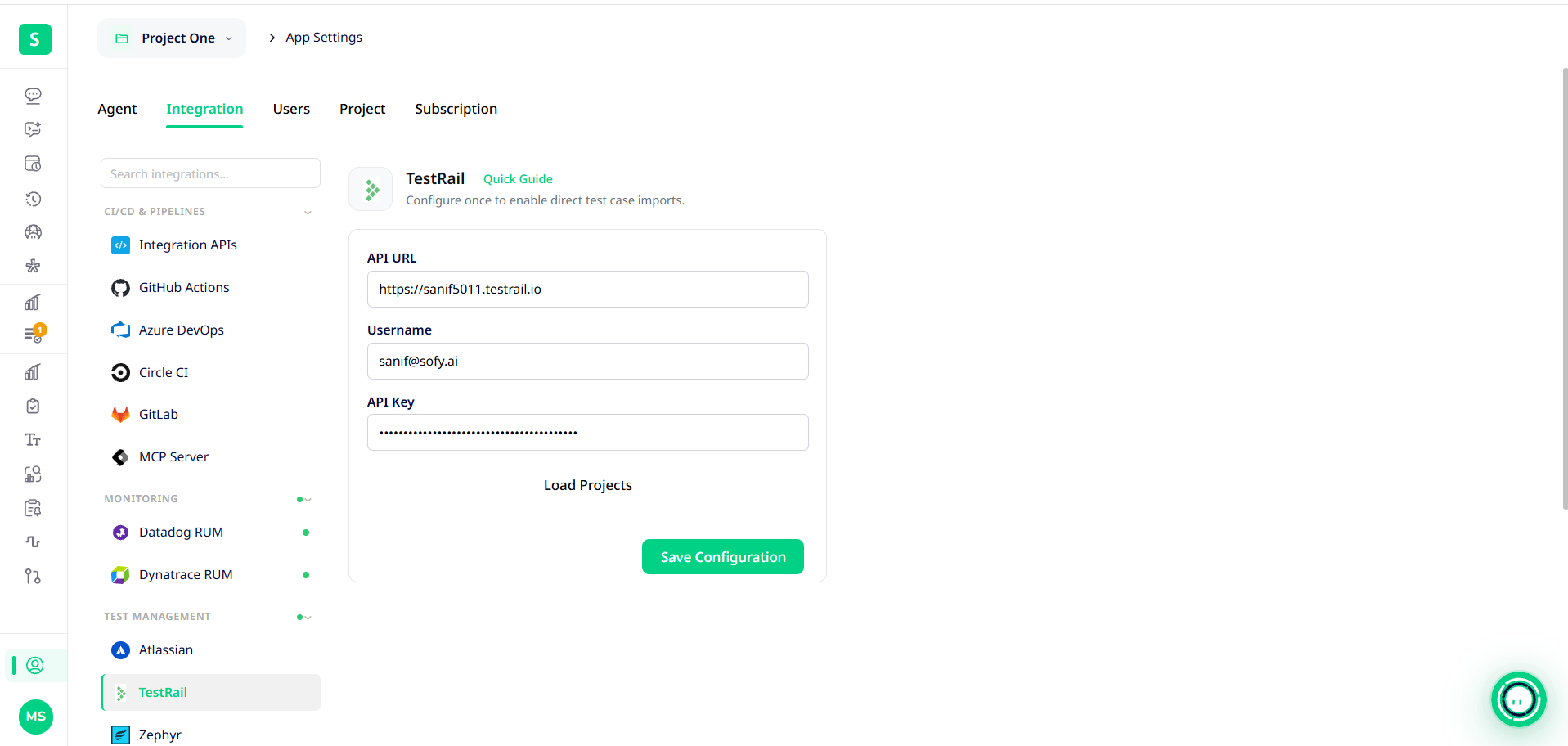
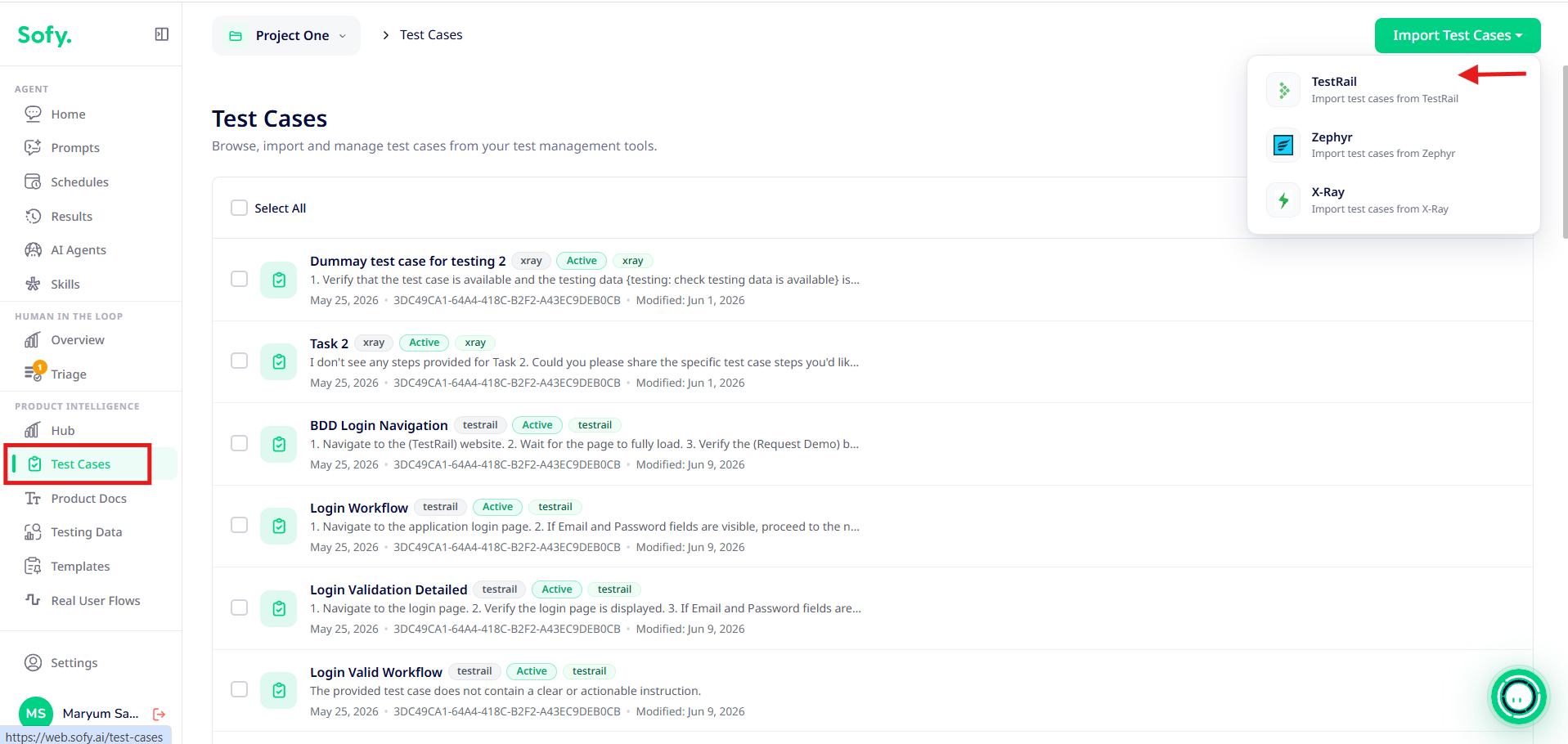
- Connect TestRail and pick a project as described above and save configuration.
- Import TestRail cases from Test Cases section. Each case becomes a saved prompt.
- Create a schedule that includes those prompts and turn on "Sync with TestRail".
After each scheduled execution, Sofy creates a TestRail run and sets each case's status from its result. Results are synced only for scheduled runs that have "Sync with TestRail" turned on. One-off runs aren't synced.
Zephyr and X-ray: Import test cases
After connecting, preview the test cases in your repository folder, choose the ones you want, and import them as prompts from the Test Cases section.
Webhooks: Get notified when runs finish
- Open Sofy Webhooks and enter your endpoint's Webhook URL. Add custom headers, such as an auth token, if your endpoint needs them.
- Click Test to send a sample event. The status changes to Verified if your endpoint replies, or Unreachable if it doesn't.
- Turn on webhooks in a schedule. Sofy sends a run. Completed event each time that schedule's run finishes.
MCP Server: Run tests from Claude
The MCP Server card holds the URL and API key that let Claude and other AI assistants run Web Agent prompts. See Subscription, Credits and MCP Access.
Keeping data fresh
To re-import from connected integrations on a schedule, turn on Auto-Sync in your project settings. See Managing Projects.
