Zoom In / Zoom Out

Many apps rely on pinch-to-zoom gestures for map views, image viewers, and other zoom-enabled UI — think dropping a pin on a trail map or zooming into a photo. Sofy now supports recording these zoom gestures directly, so flows that depend on them are no longer a blocker for automation.
Zoom In / Zoom Out is available on both iOS and Android.
Here's how to record a Zoom In or Zoom Out action in Sofy:
- Acquire a device from the Device Lab and open your app, then navigate to the screen with the zoom-enabled view you want to test.
- From the action sidebar, select the gesture icon (hand icon), then choose Pinch Zoom from the menu that appears.
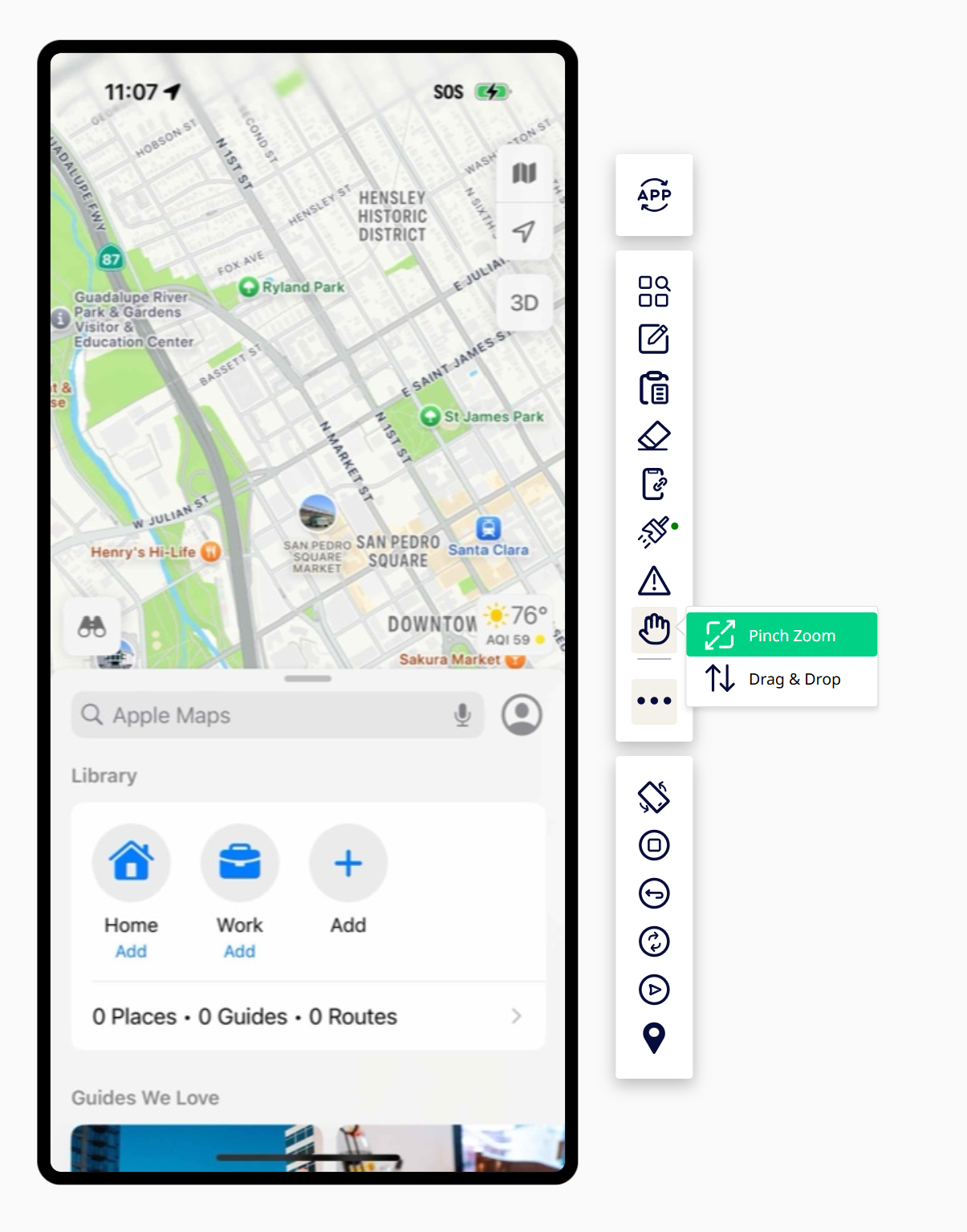
- Click on the location you wish to perform the gesture on and drag to create a circle on the area of the screen where you want the zoom to be centered. A dashed circle with a center dot marks the focal point for the gesture.
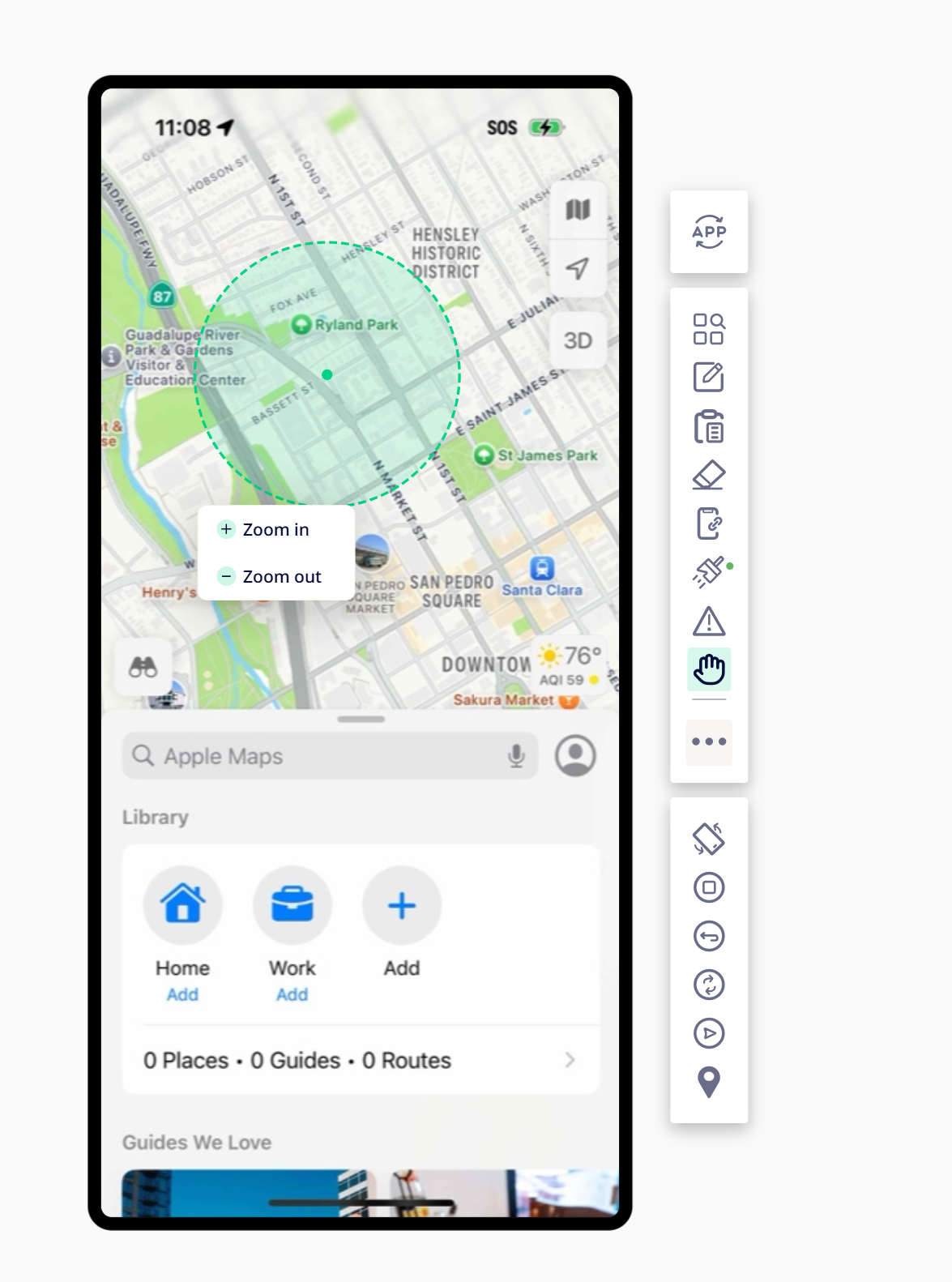
- Choose the zoom direction:
- Zoom In (spread)
- Zoom Out (pinch)
- Sofy performs the gesture on the device and records it as a step in your test.
Good to Know
- The zoom is centered on the focal point you draw, not the center of the screen — this matters for apps like map views where zooming toward a specific pin or location is part of the intended flow.
- Zoom gestures work on any zoom-enabled UI component, not just maps — this includes image viewers and similar dynamic-scaling views.
- Gesture intensity adjusts automatically to the device's screen size, so the same recorded step behaves consistently across different devices.
