Updating a Test Step's Baseline from Results

As your app evolves, screens you've already recorded will naturally drift from what's stored as the baseline — a redesigned button, updated copy, a shifted layout. Sometimes that shows up as a failed or warned step; other times the step still passes, but the recorded baseline is simply out of date. Either way, instead of leaving the Results page to open the Offline Editor or Lab Editor, you can now update a step's baseline directly from the Compare to Recording view.
This keeps routine test maintenance in the same workflow as test review, so you can confirm a UI change is expected and refresh the baseline without breaking your flow — whether you're recovering from a failure or just keeping your tests current with a UI that's intentionally changed.
When You Can Update a Baseline
A step is eligible for a baseline update when:
- The test run has completed
- The step has a valid screenshot from the current run
- You have permission to modify the test (see Permissions below)
Not supported in this version:
- Launch App
- Wait
- API
- Arithmetic
- Variable Comparison
These step types don't rely on a UI element, so there's nothing for Sofy to re-baseline. If a step isn't eligible, the Set as Baseline button won't be available for it.
How to Update a Baseline
- Open a completed test run (schedule or lab).
- Select Compare to Recording.
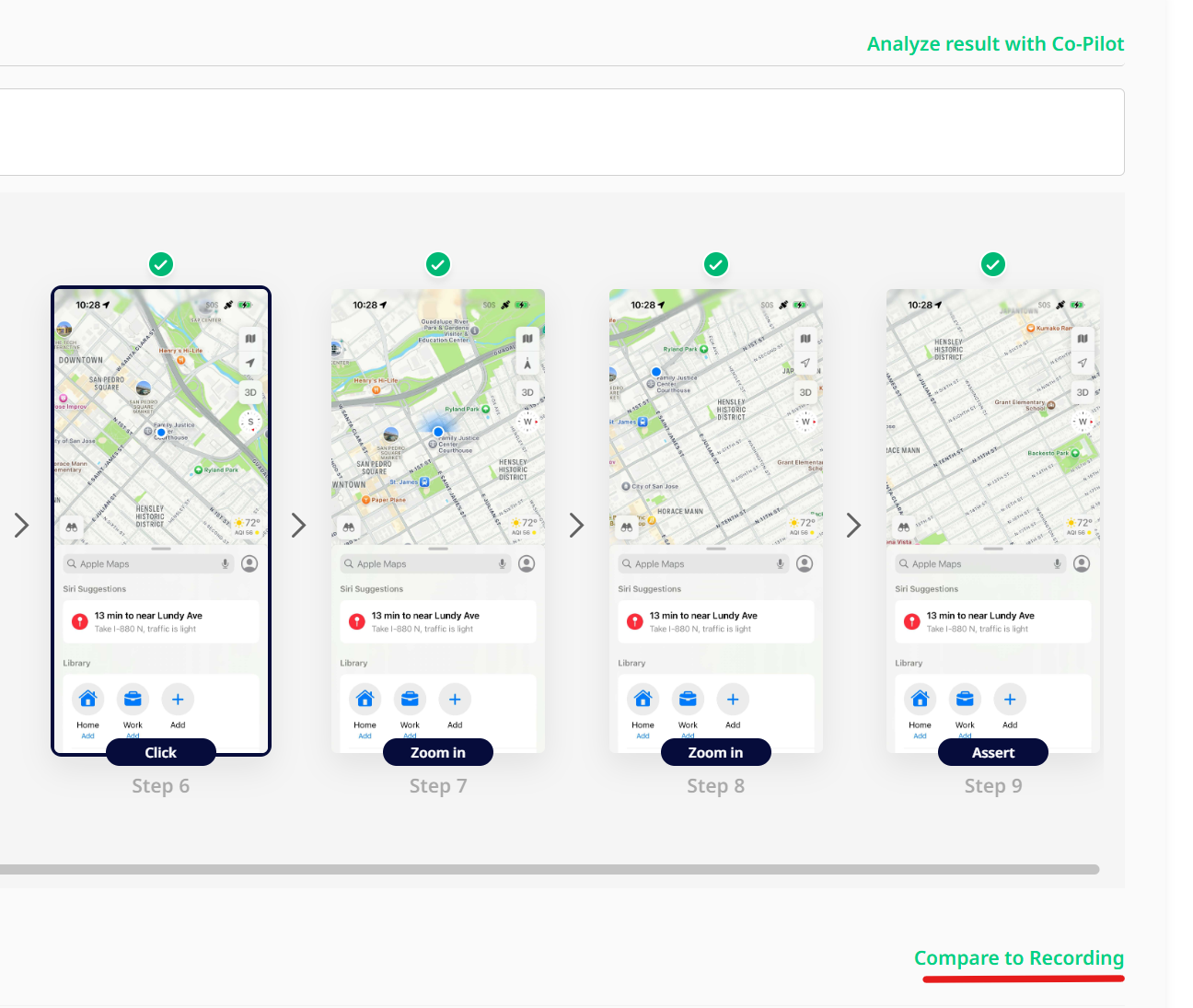
- Review the steps. When you find one where the current run shows the correct, expected state of the app, click Set as Baseline on the current run (right) side of that step.
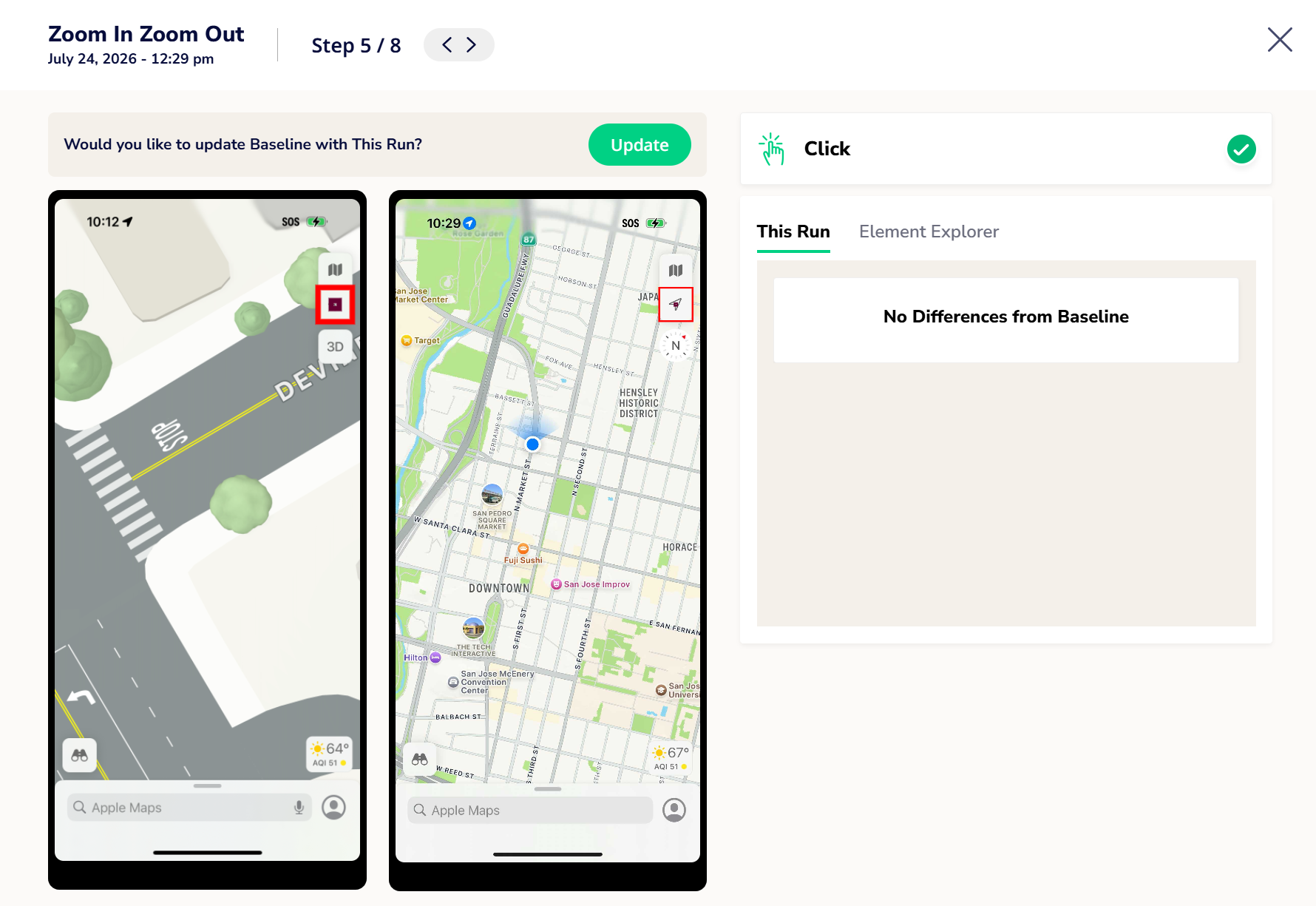
- What happens next depends on the step's status:
- Passed or Passed with Warning: Sofy already resolved the target element during execution, so it's pre-selected automatically. You can confirm right away, or open the element picker if you'd like to select a different element.
- Failed: Sofy couldn't resolve the target element, which may be why the step failed. In this case, Update Baseline stays inactive until you manually select the correct target element on the current run's screenshot. Once you've made a selection, the button becomes available. If the element can't be selected because it has no ID or Sofy doesn't detect it, use a Manual Override or Visual Match instead (see below)
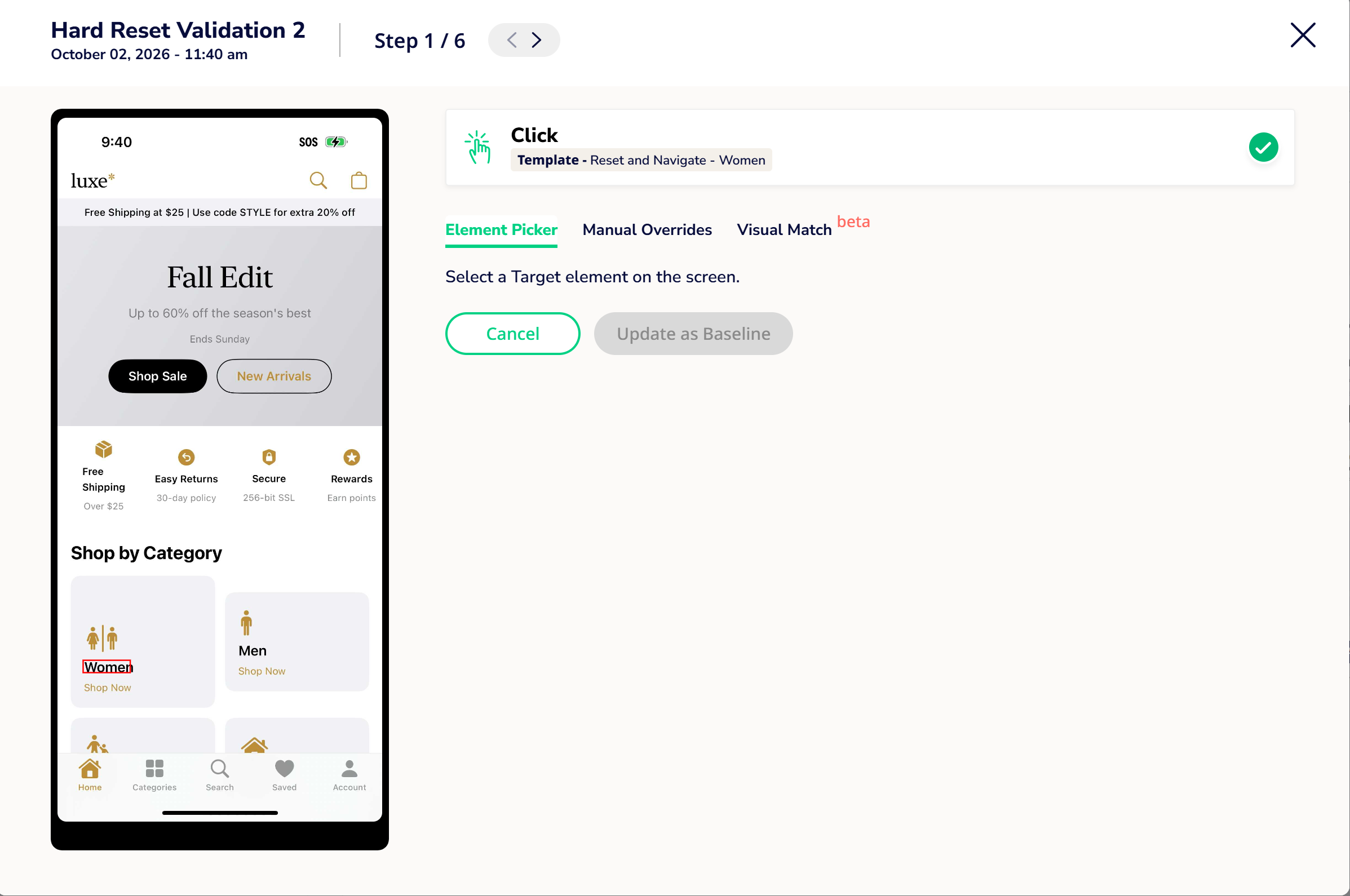
- A confirmation dialog appears:
Click Update Baseline to confirm, or Cancel to back out."This will replace the recorded baseline for this step using information captured during the current run. Future executions will use this updated baseline."
- The baseline updates immediately. You'll see a success message ("Baseline updated for Step X"), and the Compare to Recording modal stays open so you can continue reviewing the rest of the steps.
Once a step's baseline has been updated, the Set as Baseline button is replaced with a message noting the update. The original (old) baseline screenshot remains visible in this report for reference, so there's no confusion about what the step looked like at the time it ran.
When Sofy Can't Detect the Element
Some elements can't be picked from the screenshot, for example when they have no resource ID or don't appear in the screen's XML. You can still update the baseline for these steps by telling Sofy how to find the element.
In the Set as Baseline flow, choose one of the following [confirm: where these options appear, e.g. tabs in the element picker]:
- Manual Override: Specify the attributes Sofy should use to find the element, such as Text, Content Description, or XPath. Use this when the element has identifiable properties but no stable ID. See Manually Overriding Element Selection.
- Visual Match: Draw a custom bounding box around the element on the current run's screenshot. Use this when the element has no usable properties at all, such as WebView content, images, or barcodes. See Adding a Visual Match to a Test Step.
Once you've set the override, Update Baseline becomes available. Confirm as usual, and future executions will use the override to find the element.
A few good to know details
- Scheduled runs: If a scheduled execution is already in progress when you update a baseline, that run finishes using the baseline it started with. Only future executions use the updated baseline.
- Past results stay accurate: Updating a baseline doesn't change or reclassify any previously completed run. Historical results continue to reflect the outcome at the time the test actually ran.
- Version history: Every baseline update is recorded in Sofy's existing Version History, so you can always see what changed and when.
Role | Can Update Baseline |
Admin | Yes |
Automation User | Yes |
Report Viewer | No |
Not Yet Supported
- Bulk baseline updates across multiple steps at once
- Device-specific baselines
- Selecting a different run as the baseline source
