Managing Projects

A project groups the prompts, test data, schedules and results for one application or team. The Project tab in Settings controls the current project's data protection, integration syncing and deletion. Every account starts with a project named Default. It comes with a set of sample prompts so you can run your first test right away.
Create a project
- Open the project selector and click Create Project.
- Enter a Name and, optionally, a Description.
- Choose how to start - Create Empty Project : start with no prompts or test data. Import Data from Existing Projects : choose the prompts and test data to copy from your other projects.
- Choose the agent the project uses.
- Click Create.
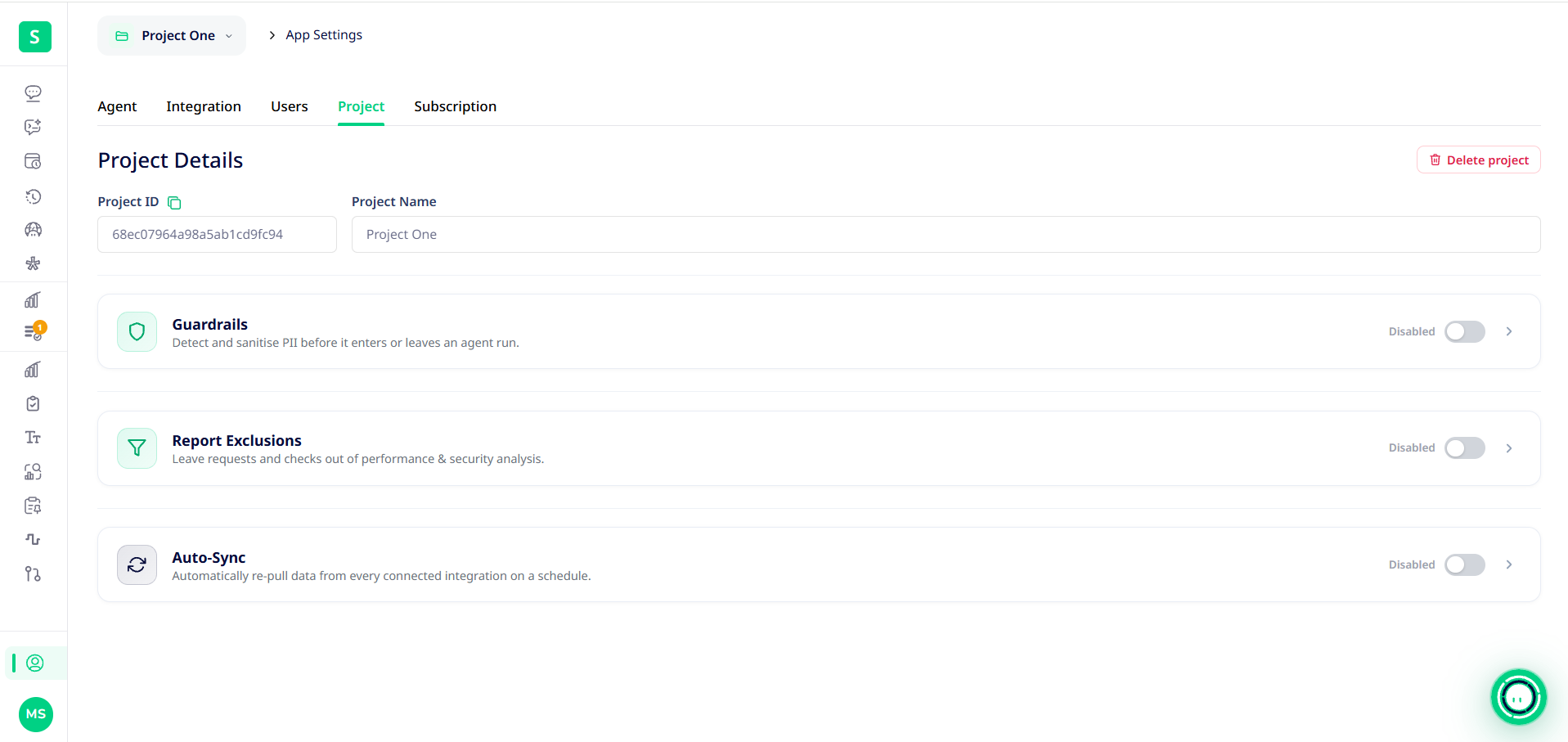
Guardrails: Protect personal data
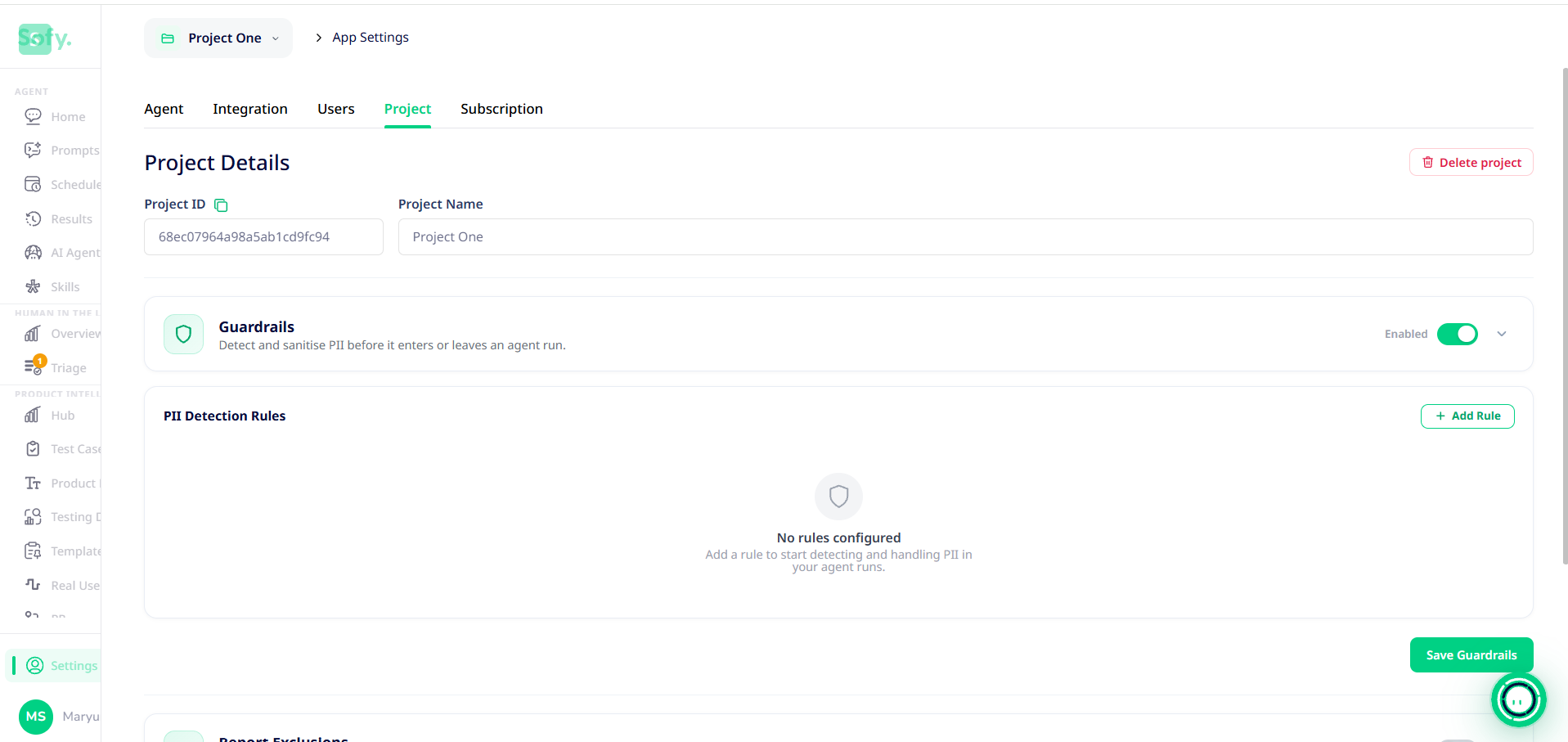
Guardrails find personal data (PII) in what the agent reads and writes, and handle it before it's stored or sent to the AI model.
- Expand Guardrails and switch its toggle from Disabled to on.
- Under PII Detection Rules, click + Add Rule, then set:
PII type - email, credit card, IP address, MAC address, URL, SSN or phone number.
Strategy - what to do when the data is found (see the table below).
Apply to - input (your prompt), output (the agent's responses), tool results (what the agent reads from the page), or any combination.
- Add a rule for each type of data, then click Save Guardrails.
Strategy | Effect | Example (email) |
Redact | Replaces the value with a label | [REDACTED_EMAIL] |
Mask | Hides most of the value | j***@example.com |
Hash | Replaces it with a consistent code, so the same value always matches | a3f9… |
Block | Stops the run | — |
Report Exclusions: keep noise out of performance and security results
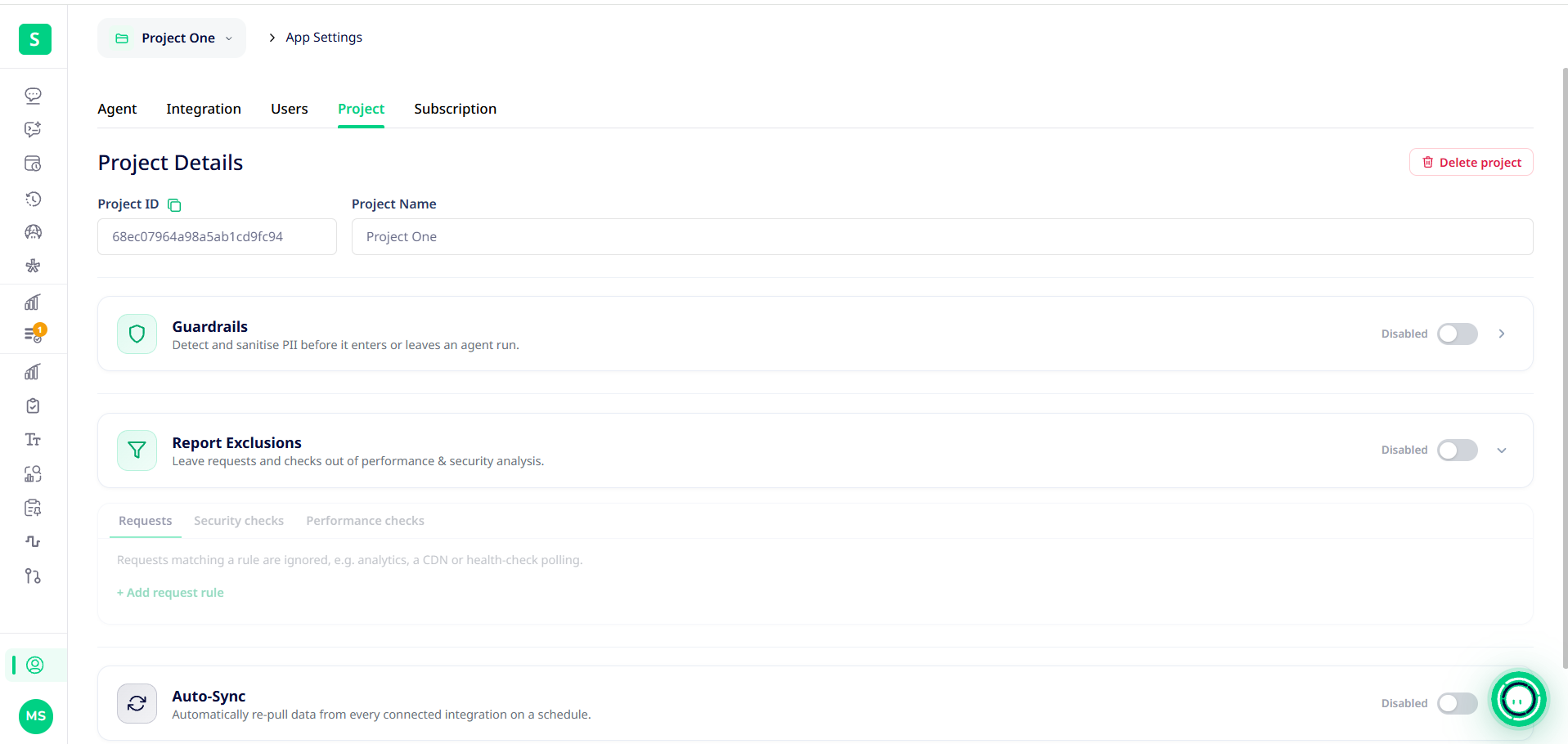
Report Exclusions leaves requests and checks you don't care about out of a run's performance and security analysis, such as analytics calls, a CDN or health-check polling.
- Expand Report Exclusions and switch it on.
- Choose a tab: Requests, Security checks or Performance checks.
- Add a rule, for example + Add request rule on the Requests tab. Requests that match a rule are ignored in the analysis.
Auto-Sync: keep integrations up to date
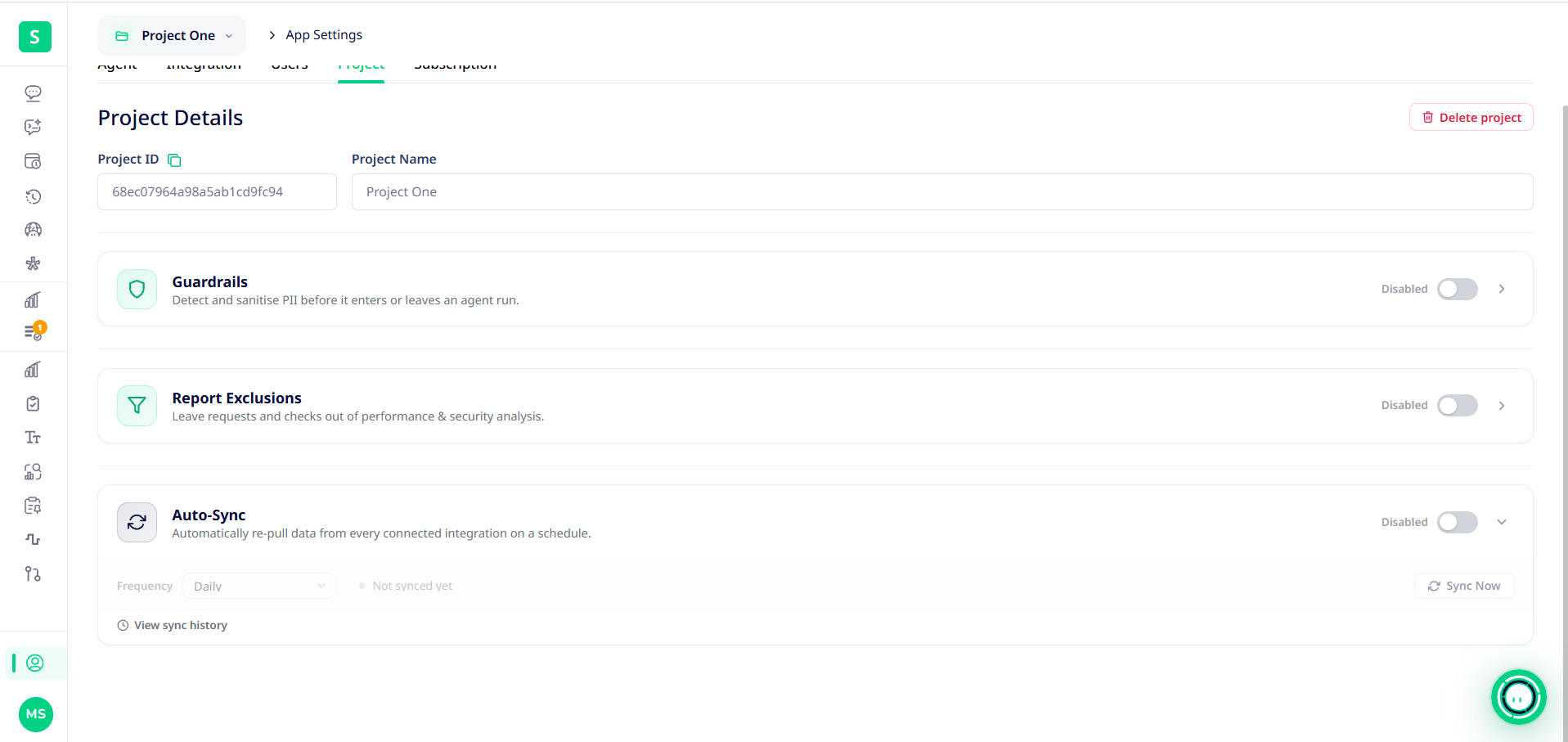
Auto-Sync re-imports data from all of the project's connected integrations, such as testcases, Jira tickets and RUM flows, on a schedule.
- Expand Auto-Sync and switch it on.
- Under Frequency, choose every 6 hours, every 12 hours, daily (default), every 2 days, weekly, every 2 weeks or monthly.
- Click Sync Now to run it immediately. The last sync's status shows beside the frequency ("Not synced yet" before the first one). Click View sync history to see earlier syncs.
Delete a project
Click Delete project at the top right of the Project tab, and confirm. The project and its prompts, test data and schedules are removed from your workspace.
Where do the app URL and login credentials go?
Projects don't store a target URL or credentials. Put the URL in your prompt. Store usernames, passwords and other values in Testing Data, then reference them in prompts as {{variable}}. See Creating Test data.
Self-hosted deployments
Everyone in a self-hosted deployment shares the same Default project. New users join it rather than getting their own.
