Creating and Using Skills in Prompts

A skill is a reusable action the Web Agent can perform, such as "Log in as admin" or "Navigate to AP Invoices". You save it once. The agent then uses it in any prompt that needs it, so you don't have to describe those steps again. You don't need any special syntax to use a skill. When a skill is Active, the agent decides on its own when to use it, based on your prompt and the skill's description.
Types of skills
- Recorded skill - A list of exact steps taken from a successful run. It replays the same actions every time. This type suits stable flows such as login or menu navigation.
- Guided skill - Written instructions in plain text or Markdown. The agent follows them step by step and adapts to the page. This type suits flows where the page changes. A guided skill can take up to 10 steps, and it can't call other skills.
Save a skill from a run
- Run a prompt that performs the action you want to reuse.
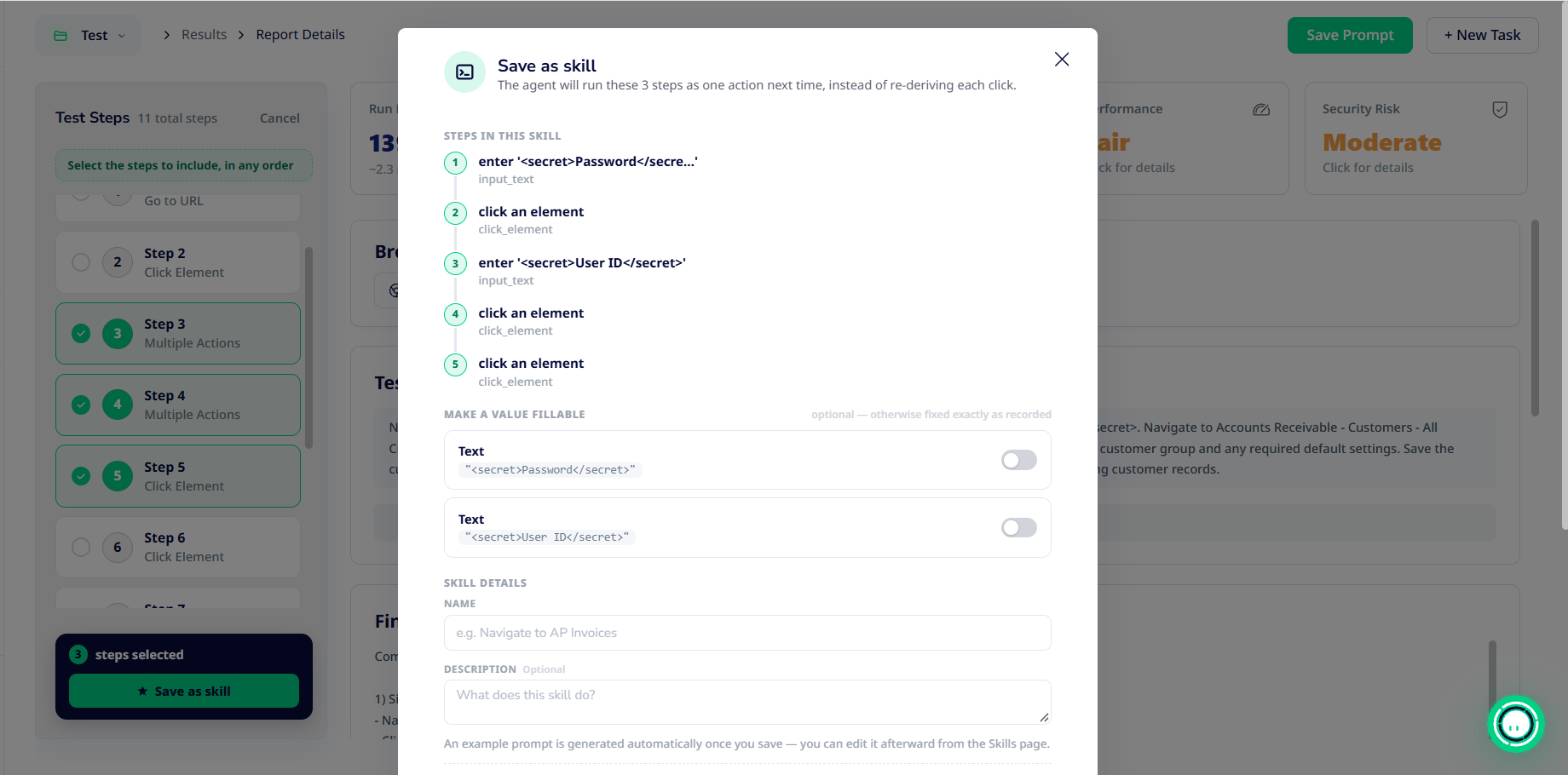
- Open the run from Results and select the steps that make up the action. Steps are saved in the order you select them.
- Click Save as skill
- Enter a Name, for example "Log in as admin". You can also add a Description of when to use it.
- Optionally, choose which values to turn into parameters. For example, turn the typed username into username so the skill works for any user.
- Optionally, turn on Keep private to my account.
- Click Save
When you save, Sofy improves your description and writes an example prompt for the skill automatically.
Create a guided skill
- Go to Skills in the left menu.
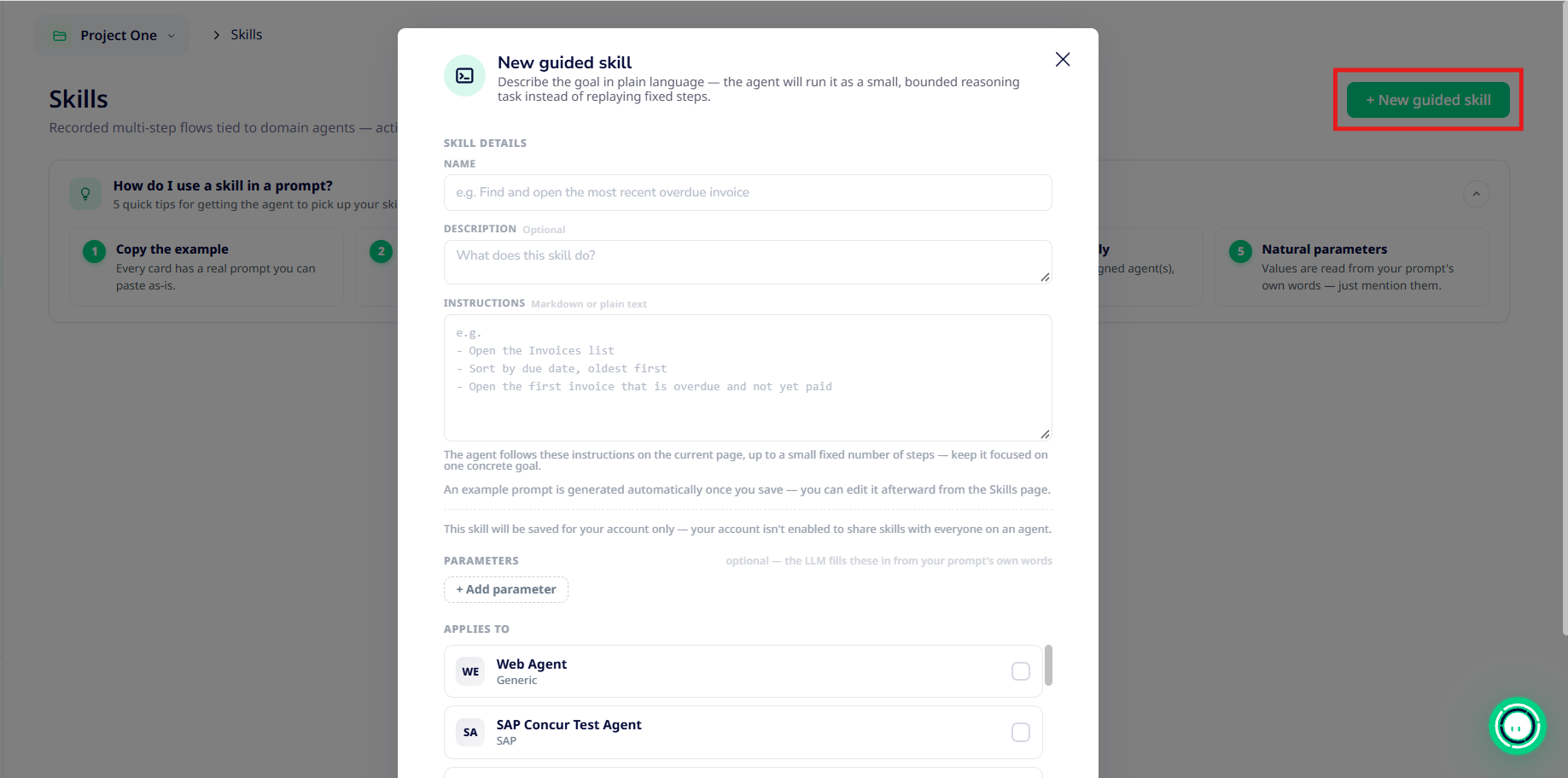
- Click + New guided skill
- Enter a Name and an optional Description
- Under Instructions, describe what the agent should do, for example: "Open the Settings menu, choose Billing, and confirm the current plan is shown."
- Add any Parameters the instructions need. Refer to a parameter in the instructions as {{parameter_name}}. Then, under Applies to, tick each agent that can use the skill.
- Click Save.
Activate a skill
New skills are saved as Draft. The agent only uses Active skills, and only for the agent the skill belongs to. On the Skills page, switch the skill's toggle from Draft to Active.
Use a skill in a prompt
Write your prompt in plain language and include any values the skill needs. The agent fills in the parameters from your prompt's own words.
For Example : Log in as admin with username qa_admin, then create a new invoice for Acme Corpand verify it appears in the list.
If a "Log in as admin" skill is active, the agent uses it for the first part and carries on with the rest of the prompt. Don't add {{ }} or the skill's name to call it.
Manage skills
From the Skills page you can:
- Edit - reorder, change, insert or delete the steps of a recorded skill, or rewrite a guidedskill's instructions. Each change to the steps or instructions creates a new version.
- Edit the example prompt - change the example shown for the skill.
- Duplicate - make a private draft copy of a shared skill. Once you activate the copy, it replaces the shared skill for your account only.
- View steps - see exactly what a recorded skill does.
- Delete - remove the skill.
Private and shared skills
Scope | Who sees it | Who can Create or edit it |
Private ("Keep private to my account") | Only your account | You |
Shared | Everyone using the same agent | Users with skill-authoring permission |
If you don't have authoring permission, every skill you create is saved as private. The modal shows: "This skill will be saved for your account only".
Skills, saved prompts and test data are different things
- @[Saved Prompt Name] pastes a saved prompt's text into your prompt.
- {{variable}} inserts a value from Testing Data.
- A skill is an action the agent chooses to use. It has no syntax.
