Drag and Drop

The Drag and Drop action lets you record a swipe-based drag gesture as a test step — picking up an element and dropping it onto another location or element on screen. This is useful for testing reordering, merging items into folders, moving tiles or cards, and similar drag-based interactions in your app.
Adding a Drag and Drop Step
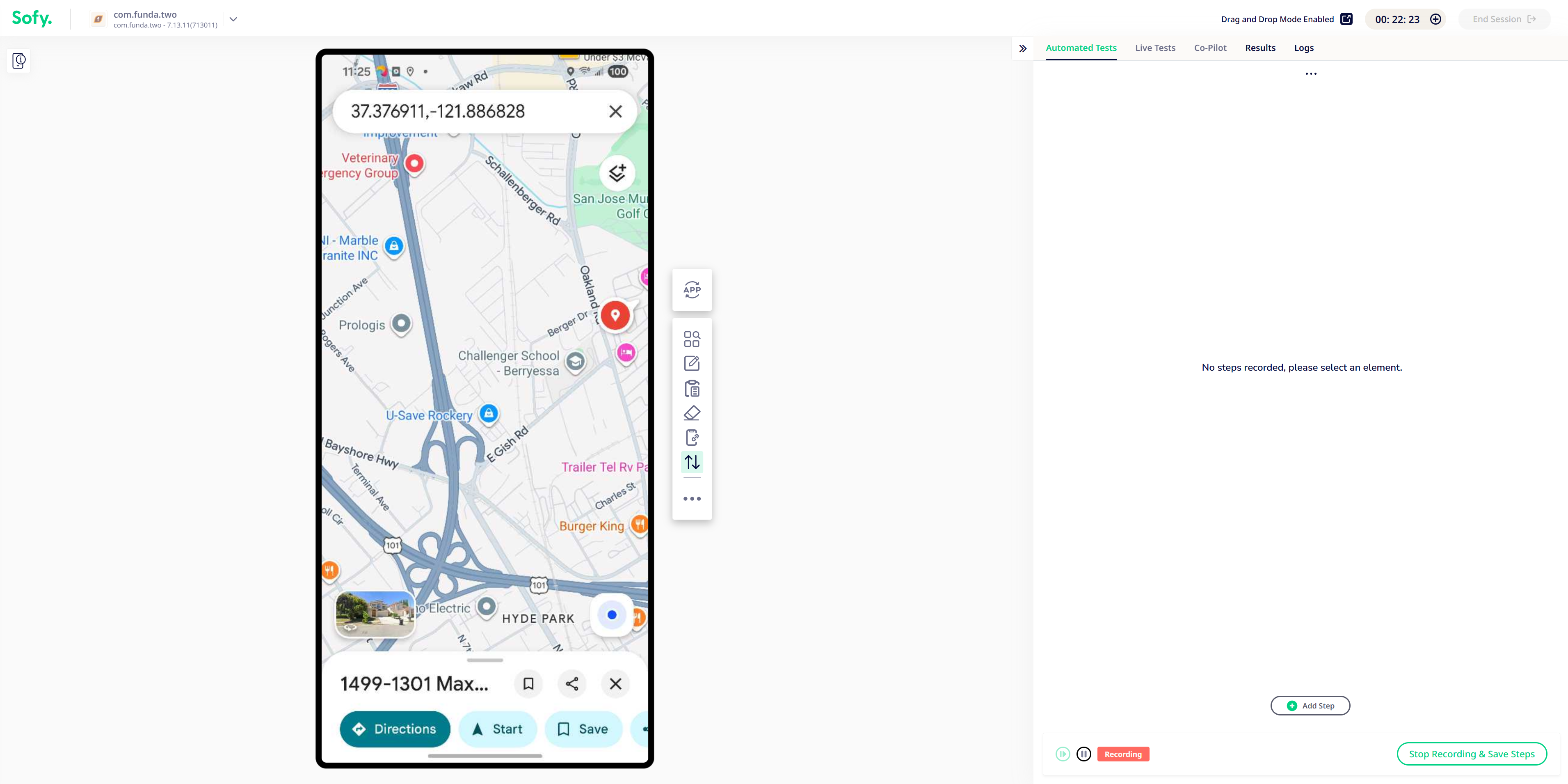
- Activate the Drag and Drop tool
- While recording a test in Lab, click the Drag & Drop icon in the action toolbar.
- This enables the Drag and Drop mode.
- Swipe on the source element
- With the tool active, press down on the element you want to drag and swipe to where you want it dropped.
- Sofy highlights the pick-up point — the element you're dragging — as you perform the gesture.
- Release on the target
- Lift at the destination to complete the gesture. The entire press-swipe-release motion is captured as a single Drag and Drop step.
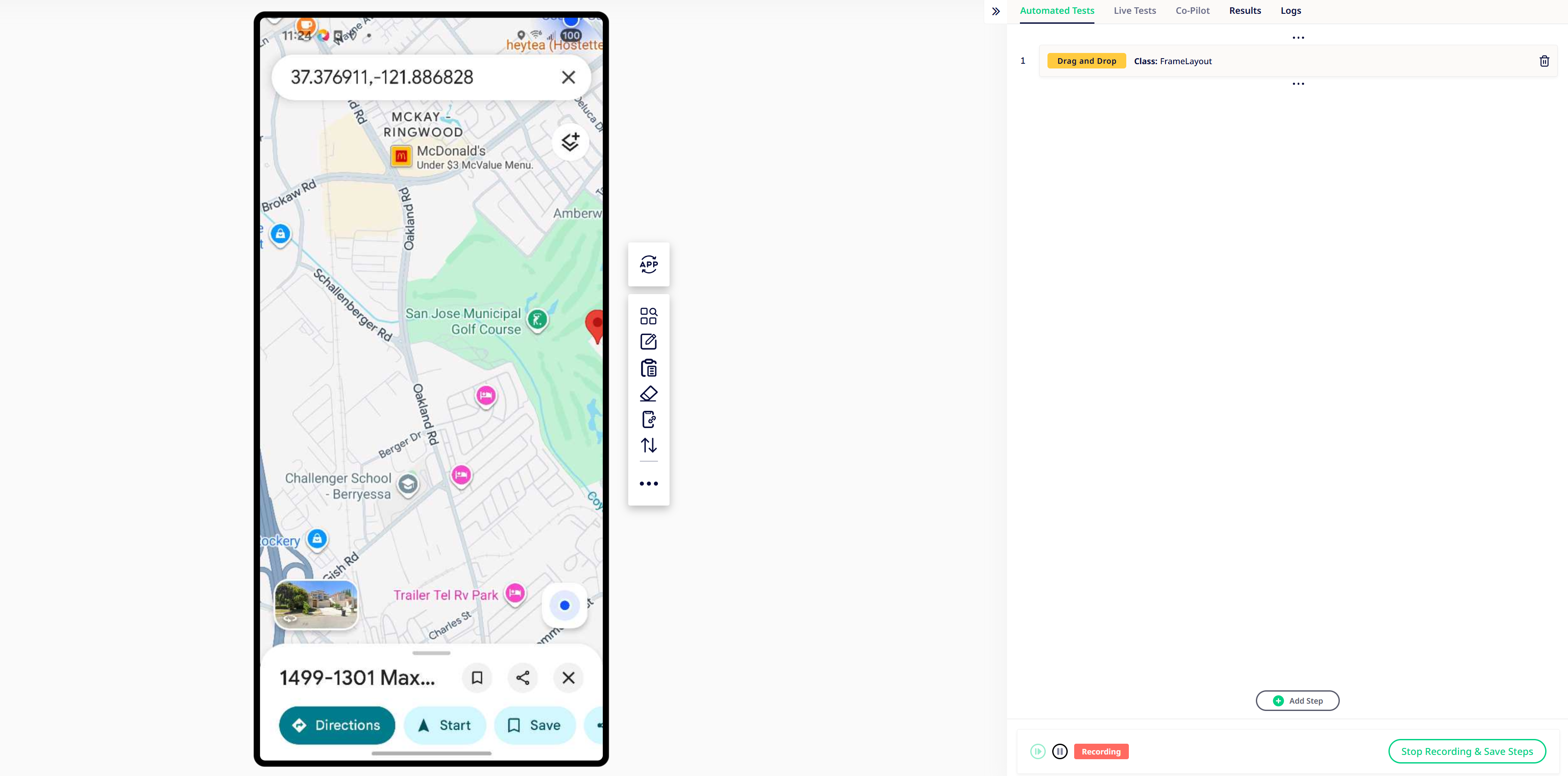
Editing a Recorded Step
Drag and Drop steps don't have an Offline Edit screen the way some other actions do. Once recorded, you can:
- Add a condition to the step
- Disable the step
- Delete the step
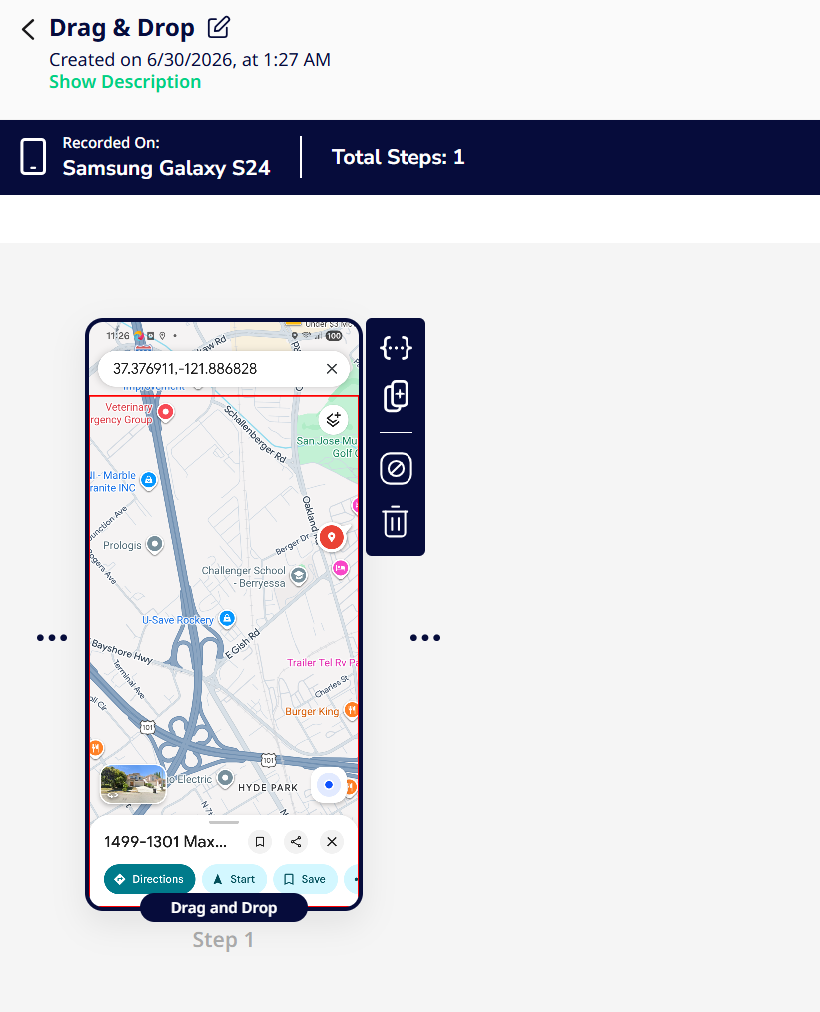
There's no option to edit the source/target coordinates after recording — if the gesture needs to change, delete the step and re-record it.
Common Use Cases
- Reordering lists or cards — testing drag-to-reorder UI such as task lists, playlists, or kanban boards.
- Merging icons into folders — validating home-screen-style interactions where dragging one item onto another creates a group.
- Moving items between containers — dragging a tile, file, or product card from one section, bucket, or category into another.
- Slider or handle-based interactions — dragging a handle across a track, such as a range selector or progress adjustment.
- Dismiss or archive gestures — dragging an item to a trash, archive, or discard zone within the app.
Have questions about setting up a Drag and Drop step, or run into unexpected behavior while recording? Reach out to the Sofy support team and we'll be happy to help.
