Notifications Pane — Open/Close Action

Overview
When recording an automated flow, you can now open and close the device's notifications pane as a discrete step, instead of relying on manual swipe gestures that may not replay reliably.
How to Use
- During recording, open the floating action toolbar on the right side of the screen and tap the bell icon (Notifications) in the toolbar.
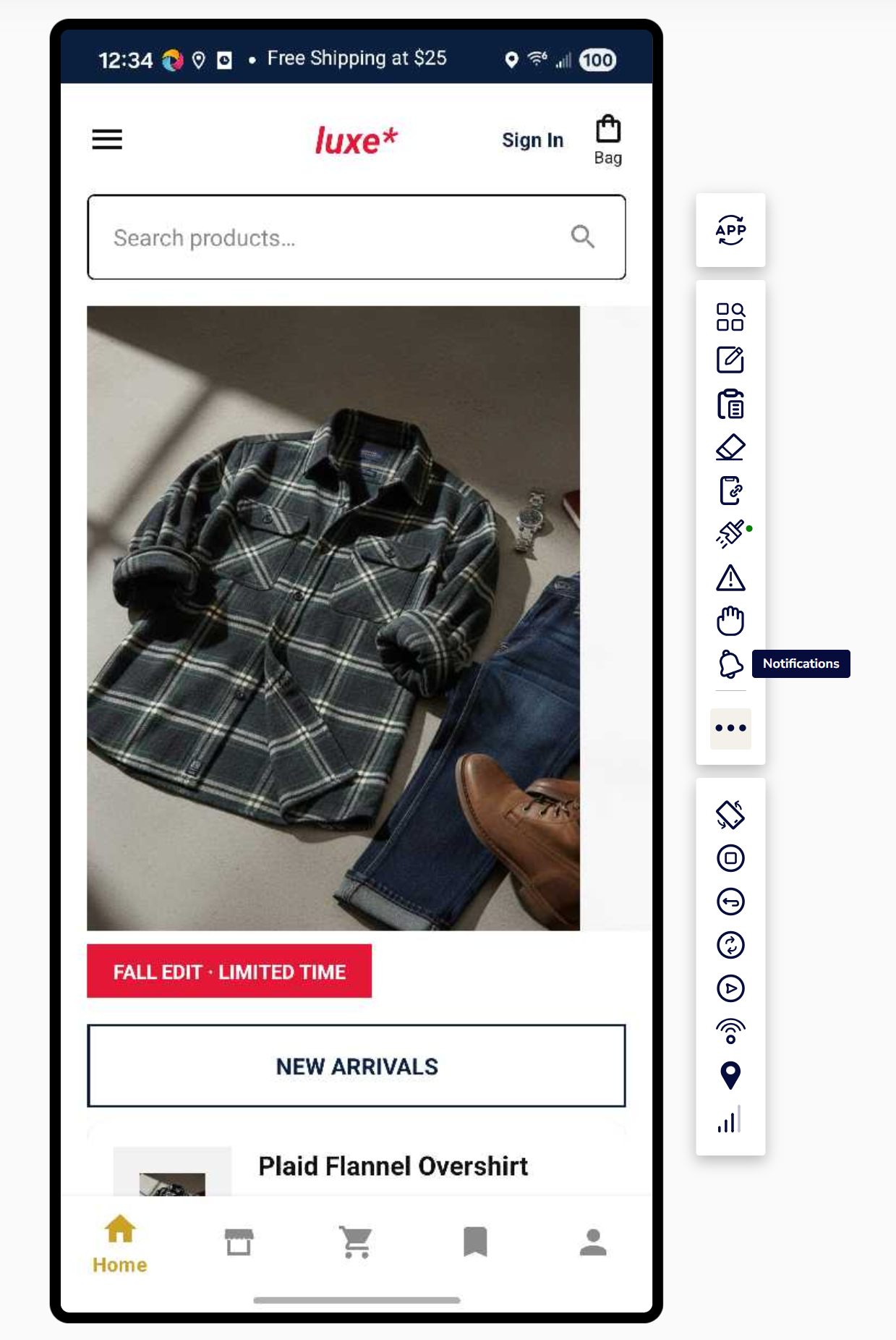
- A small submenu appears with two options:
- Open — opens the notifications pane
- Close — closes the notifications pane
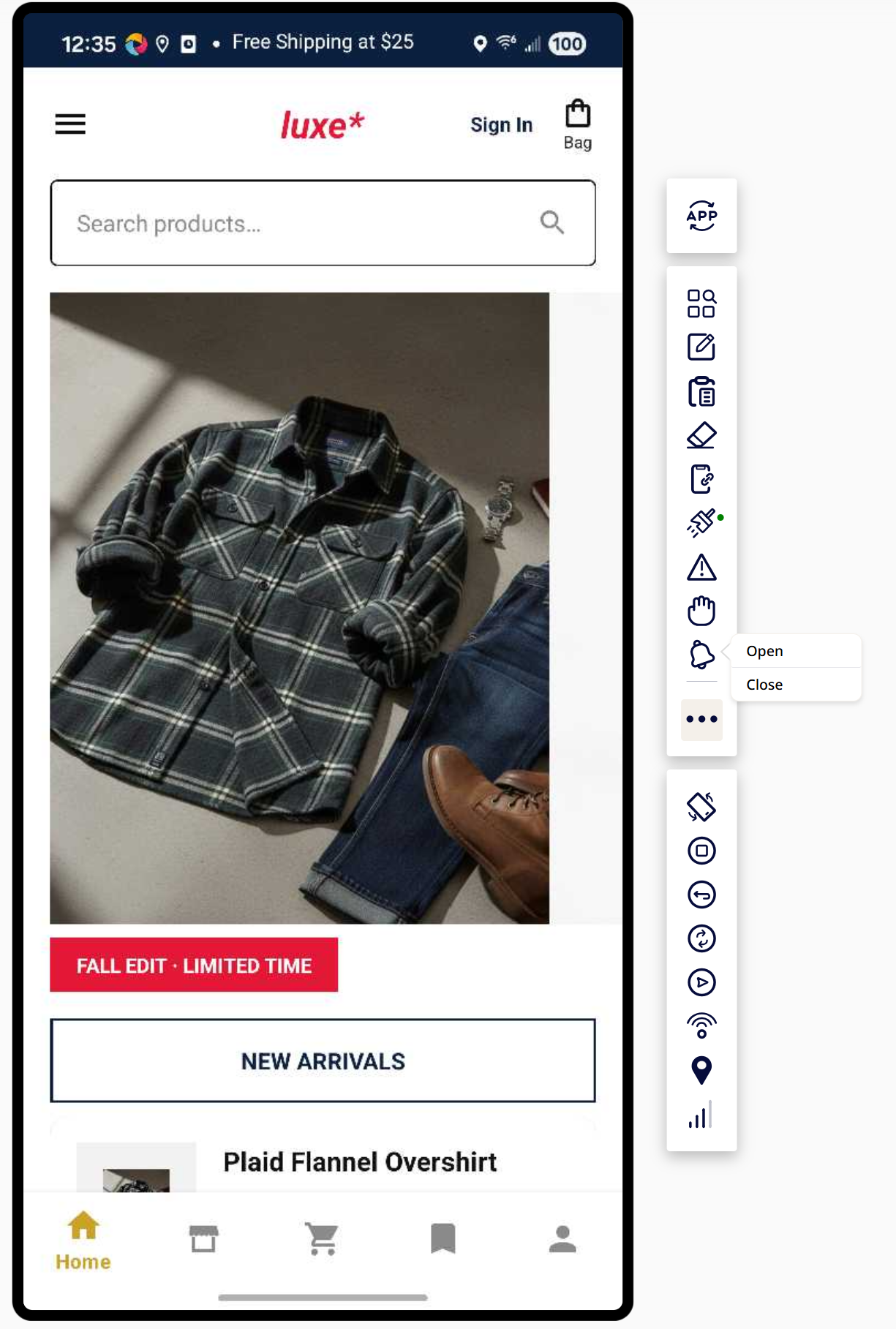
- Select the action you need. It's recorded as a step in your flow, just like any other action.
Platform Behavior
- Android: The system can reliably detect whether the notifications pane is currently open or closed (via the running activity), so Open/Close steps behave predictably and only trigger the underlying action (e.g., back-key dismissal) when appropriate.
- iOS: There's no native way to detect whether the pane is open, since it doesn't expose a UI hierarchy. Because of this, it's up to you to make sure your recorded flow calls Open and Close in the correct sequence — for example, don't call Close if the pane isn't already open, since the step may not register as expected. Double-check playback on iOS recordings to confirm the pane state matches what you intended at each step.
Notes
- This works within a recorded flow — it's not a one-off manual action.
- If you notice the pane not responding as expected on iOS, try re-triggering Open/Close in sequence rather than assuming state carried over from a manual swipe.
