Configuring Your Agent

The Agent tab in Settings controls how long the Web Agent keeps working on a prompt and how many times it retries a failed step. These settings apply to every run on your account that uses this agent.
Open the Agent settings
- Click Settings in the left menu.
- Select the Agent tab. It shows the agent assigned to your account, for example Web Agent.
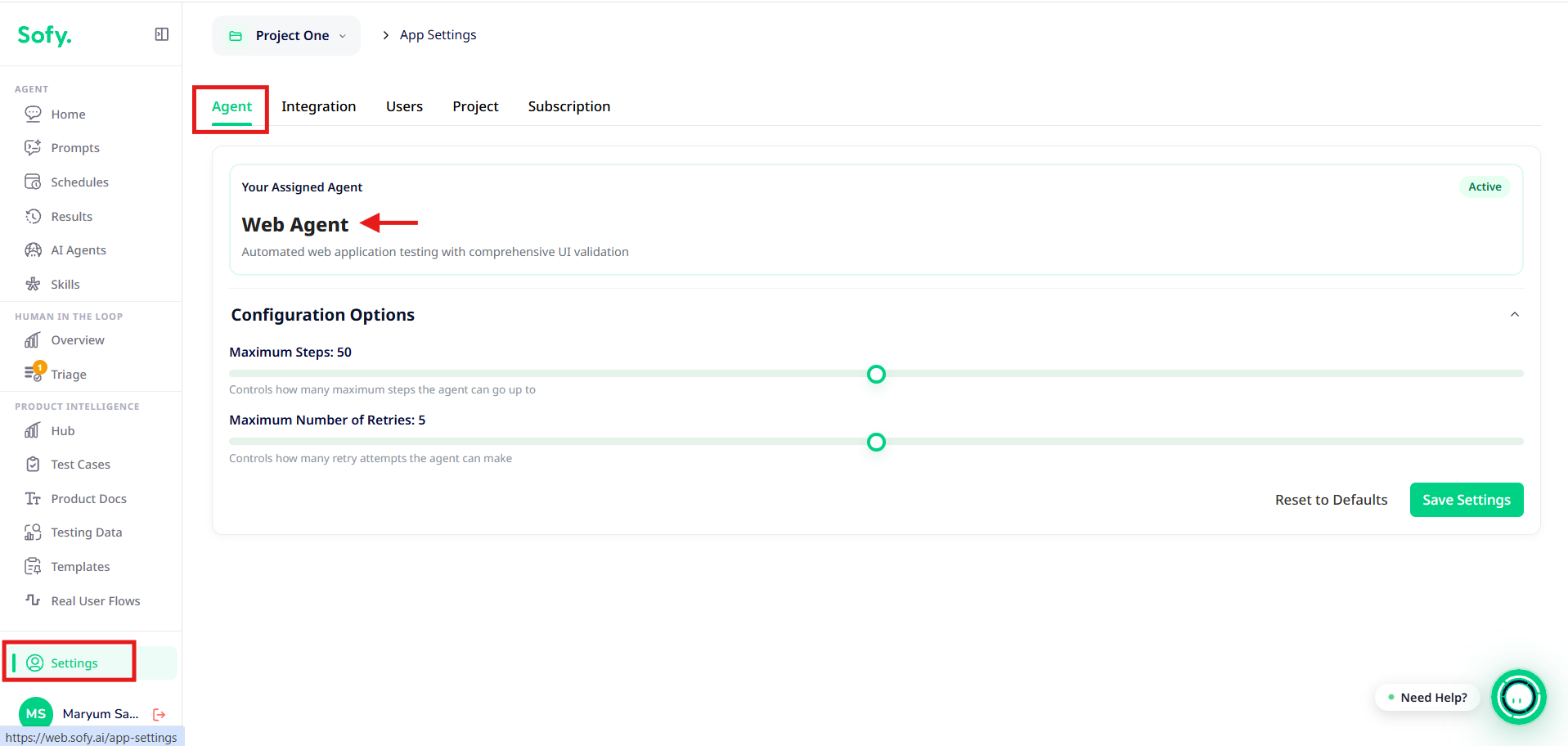
Available settings
Setting | Range | Default | What it does |
Maximum Steps | 0 - 100 | 50 | The most actions the agent can take in one run. When it reaches the limit, the run stops. |
Maximum Number of Retries | 0 - 10 | 5 | How many failed actions the agent tolerates before it gives up on the run. |
Change and save
- Drag the sliders to the values you want.
- Click Save Settings. The new values apply to your next run.
- To return to the defaults, click Reset to Defaults, then Save Settings.
Choosing values
- Raise Maximum Steps for long end-to-end prompts, such as a full checkout or onboarding flow. If a run ends early with the work half done, the step limit is the usual cause.
- Lower Maximum Steps for short checks, so a confused run fails fast instead of wandering.
- Raise Maximum Number of Retries for slow or flaky pages. Lower it when you want failures reported quickly.
What isn't set here
- Browser, screen size, orientation and light/dark mode are chosen per run or per schedule under Browser Settings. See Running Saved Prompts and Browser Configuration.
- Reusable actions are set up on the Skills page. See Creating and Using Skills in Prompts.
- Data protection (PII guardrails) is set per project. See Managing Projects.
