Debugging with HTTPS Logs

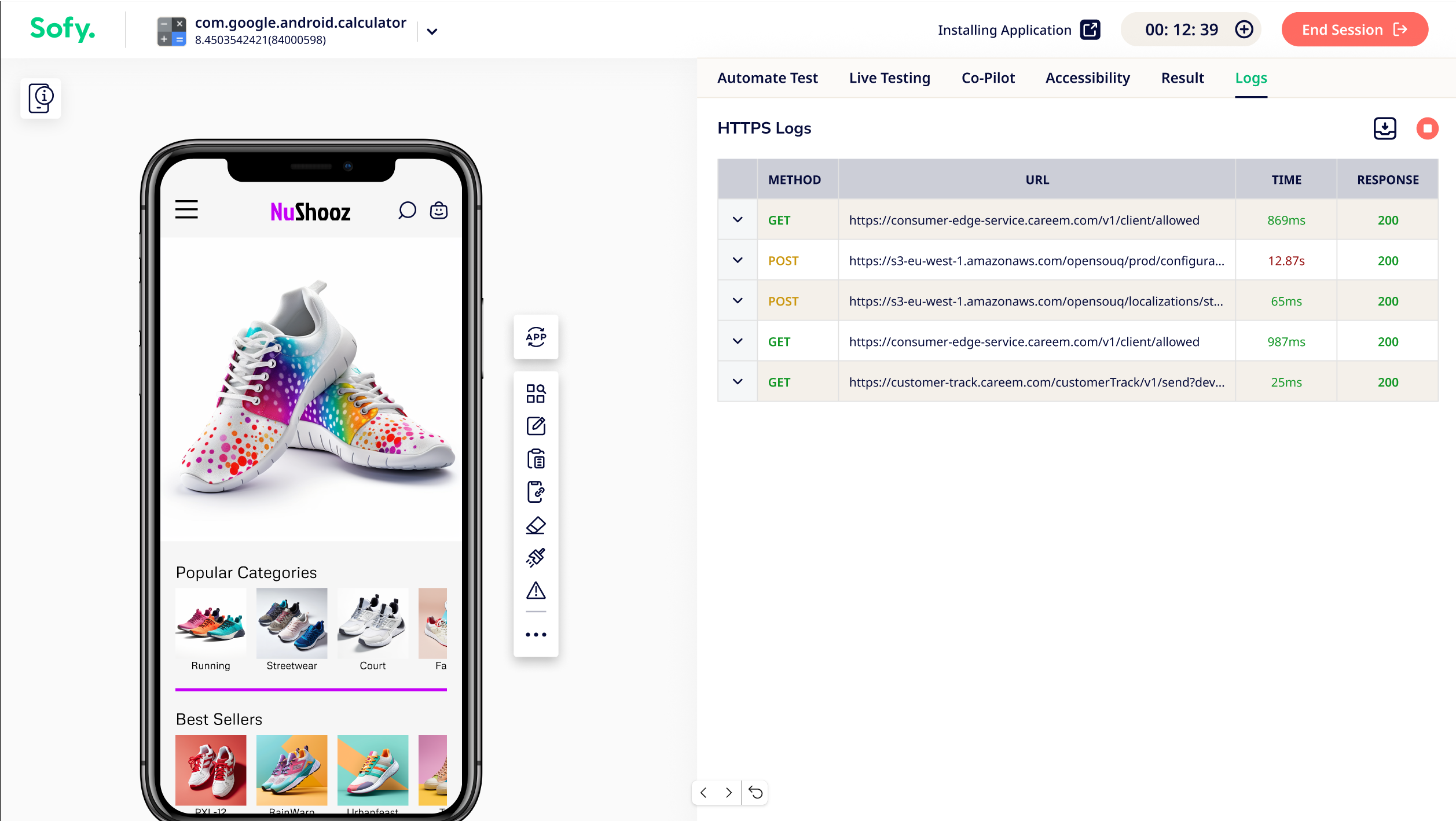
Sofy allows you to capture and analyze network activity during your test sessions. This helps debug app behavior by surfacing exact network requests and responses, making it easier to spot connectivity issues and validate backend interactions, to ensure your application is communicating as expected.
How to Capture HTTPS Logs
- Acquire a Device
- Log in to your Sofy account.
- Select Device Lab from the left navigation bar.
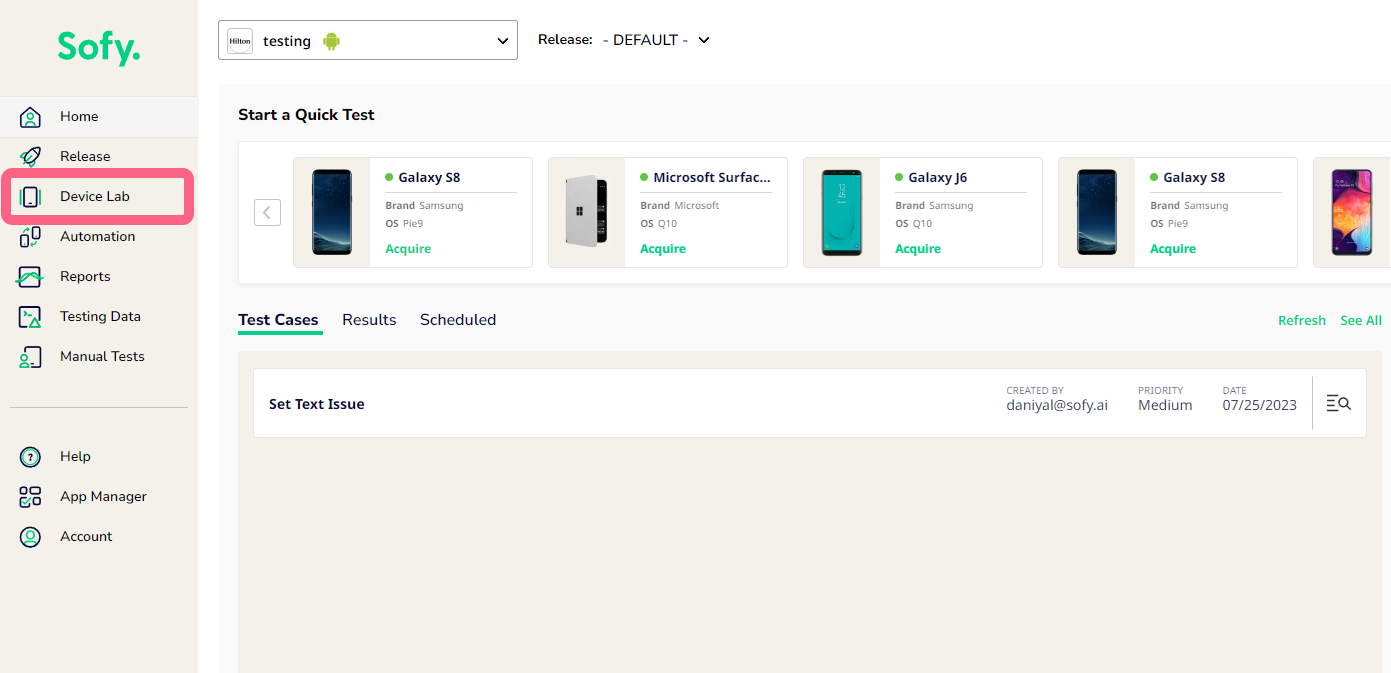
- Locate the device you want to test, then select Acquire.
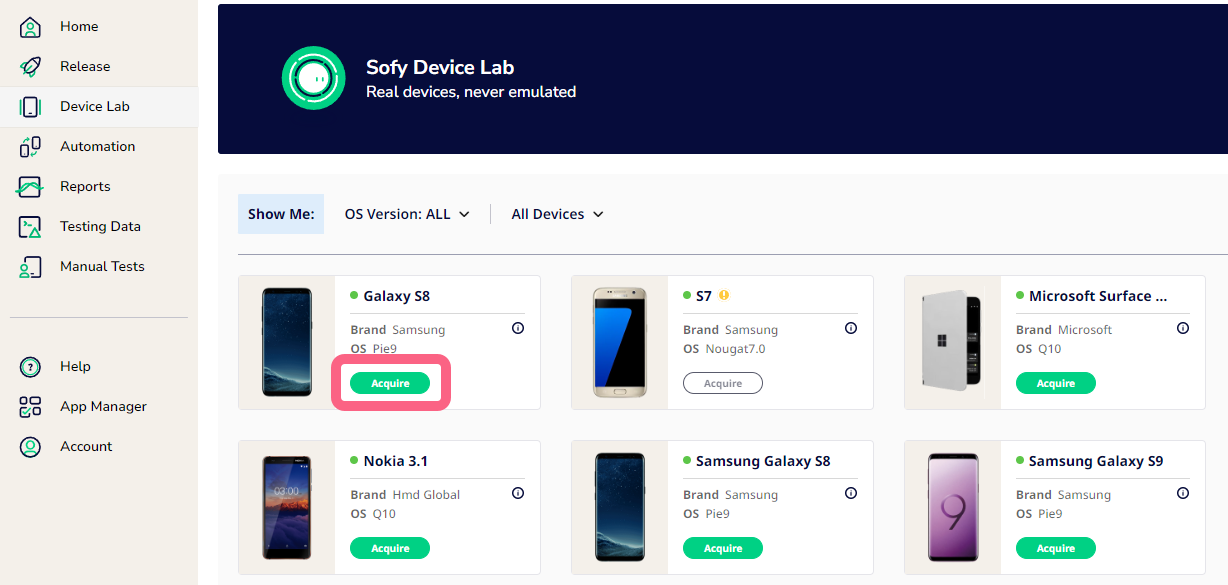
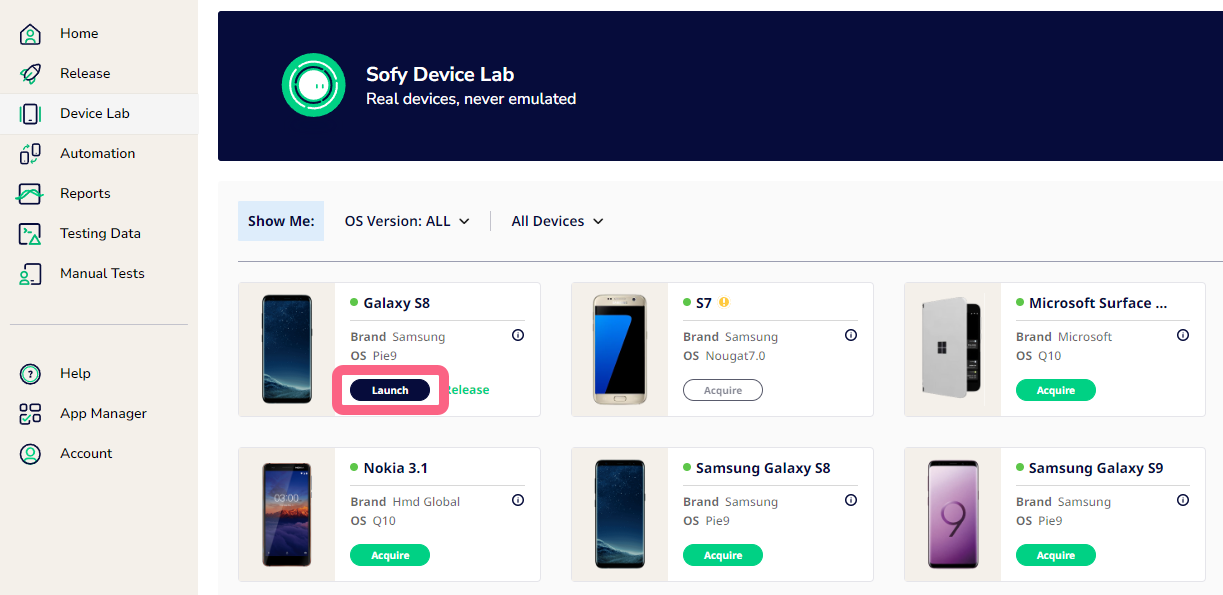
- Click Launch to open the device in a new window.
- Start Logging
- From the device toolbar, click on the Play icon next to HTTPS logs
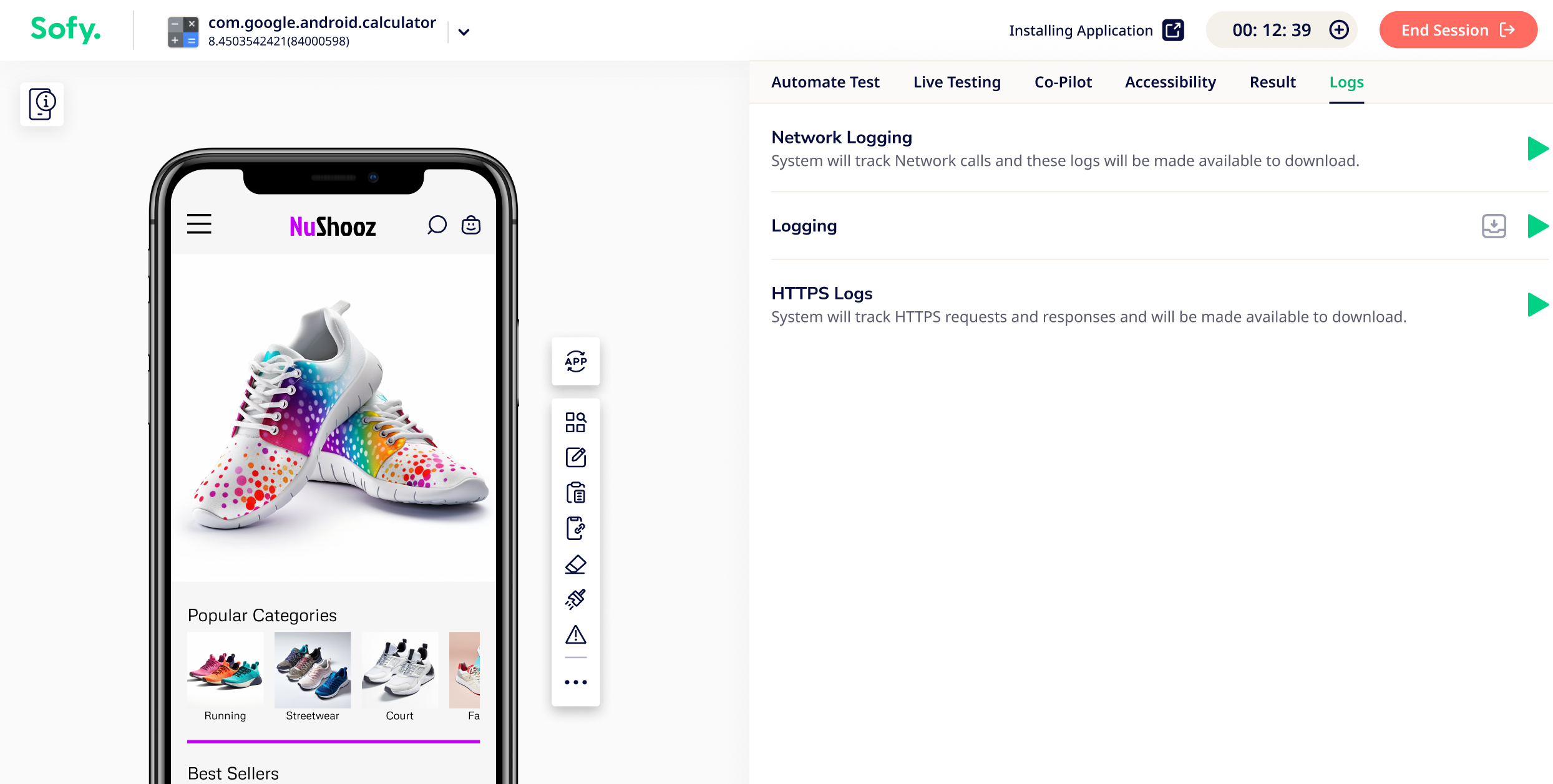
- If you application has been enabled to allow HTTPS recording (see the Chucker Integration section below), you will be able to stream the logs as well as download them.
Capturing API Logs Using Chucker (Android)
To enable real-time API (HTTPS) logging in Sofy, your Android app must integrate the Chucker HTTP inspector.
How it works
- Sofy pulls Chucker’s local database from the device via ADB
- Extracts new API transactions incrementally
- Streams logs as JSON in real time during lab sessions
- Stops automatically when the session ends
Setup Steps
1. Add Chucker Dependency
- Use full Chucker in debug builds and no-op in release builds to avoid exposing logs to end users
2. Attach Chucker to Your Network Layer
- Add Chucker as an interceptor to your OkHttp client (used by Retrofit/Ktor as well)
3. Ensure Debuggable Build
- Your app must be built with
debuggable = trueso Sofy can access logs via ADB
Required Configuration
- Database must exist at:
databases/chucker.db - Associated WAL/SHM files must also be present
- Table name must be:
transactions - App must allow
run-asaccess (debug builds only)
Verification (Recommended)
Run the following to confirm setup:
adb -s <deviceId> exec-out run-as <package> ls databases/
You should see:
-
chucker.db -
chucker.db-wal -
chucker.db-shm
Key Notes
- Works only for traffic captured inside the app (before encryption)
- Required for readable HTTPS/API logs (PCAP alone won’t show payloads)
- May require additional setup for non-native Android frameworks
Capturing API Logs Using Flocon (Android)
In addition to Chucker, Sofy also supports HTTPS log capture for Android apps that use the Flocon library. If your app already integrates Flocon, no additional setup is required on your end — Sofy handles the capture automatically during your test session.
Key Notes
- Available for Android only (Flocon does not support real iOS devices)
- Works only in debug builds, the same as Chucker
- Unlike Chucker, Flocon does not persist logs on the device — captured data exists only for the duration of the active session, so if the connection is interrupted mid-run, that session's log history won't be recoverable
When to Use This Feature
- Debug API failures or unexpected responses
- Validate request/response payloads
- Gain visibility into app-server communication
