Finding Agent-Generated Test Cases

Once you've used Save as Automation on a task run, it shows up alongside your recorded No-Code tests and can be scheduled, edited, or re-run the same way.
- From the left navigation, go to Automation → Test Cases.
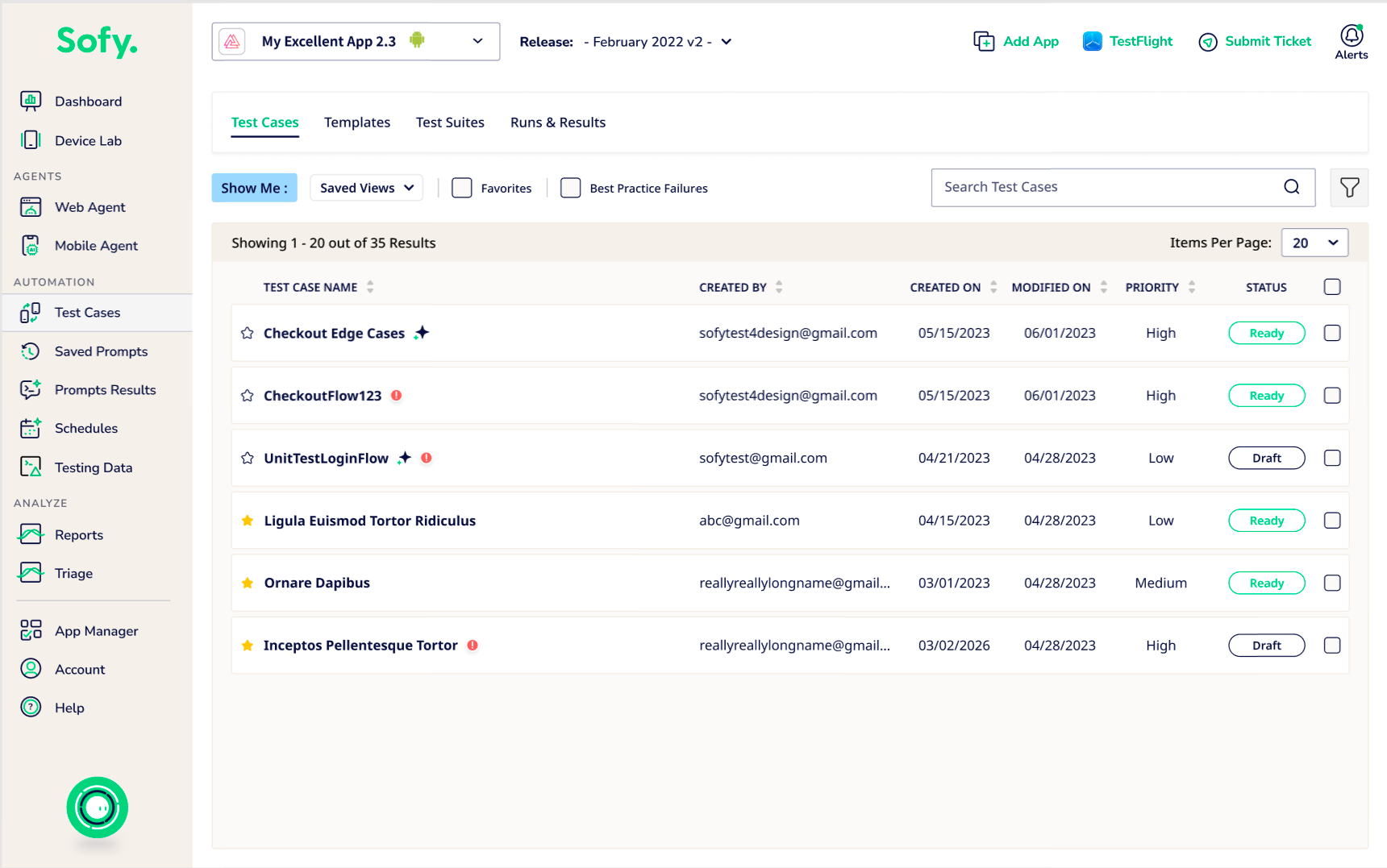
- Agent-generated test cases appear in this list just like any other test case, with the same Created By, Created On, Priority, and Status (Ready or Draft) columns. Use Favorites or Best Practice Failures filters, or the search bar, to locate a specific one.
- Click into a test case to open its detail view. You'll recognize an Agent-generated test case by its recorded step carousel at the top, which mirrors the Timeline Test Steps view from the original run.
- From here you can:
- Step through the recorded actions using the Step X / Y navigator, same as in the run results
- Insert an existing Template into the test case using the Available Templates panel
- Review the Recent Executions table to see every time this test case has run since, whether as a Schedule Run or a Lab Run, along with its Status and any Failure Reason
- Click Duplicate to branch off a variation, or Save after making edits
Because Agent-generated and manually recorded test cases live in the same list and support the same actions (scheduling, templates, versioning), you don't need a separate workflow to maintain tests created with Mobile Agent.
