Run a test with a Mobile Agent Prompt

A prompt is a plain-English description of the flow you want the agent to test. This article shows how to start a run and how to write prompts that pass reliably.
Start a run
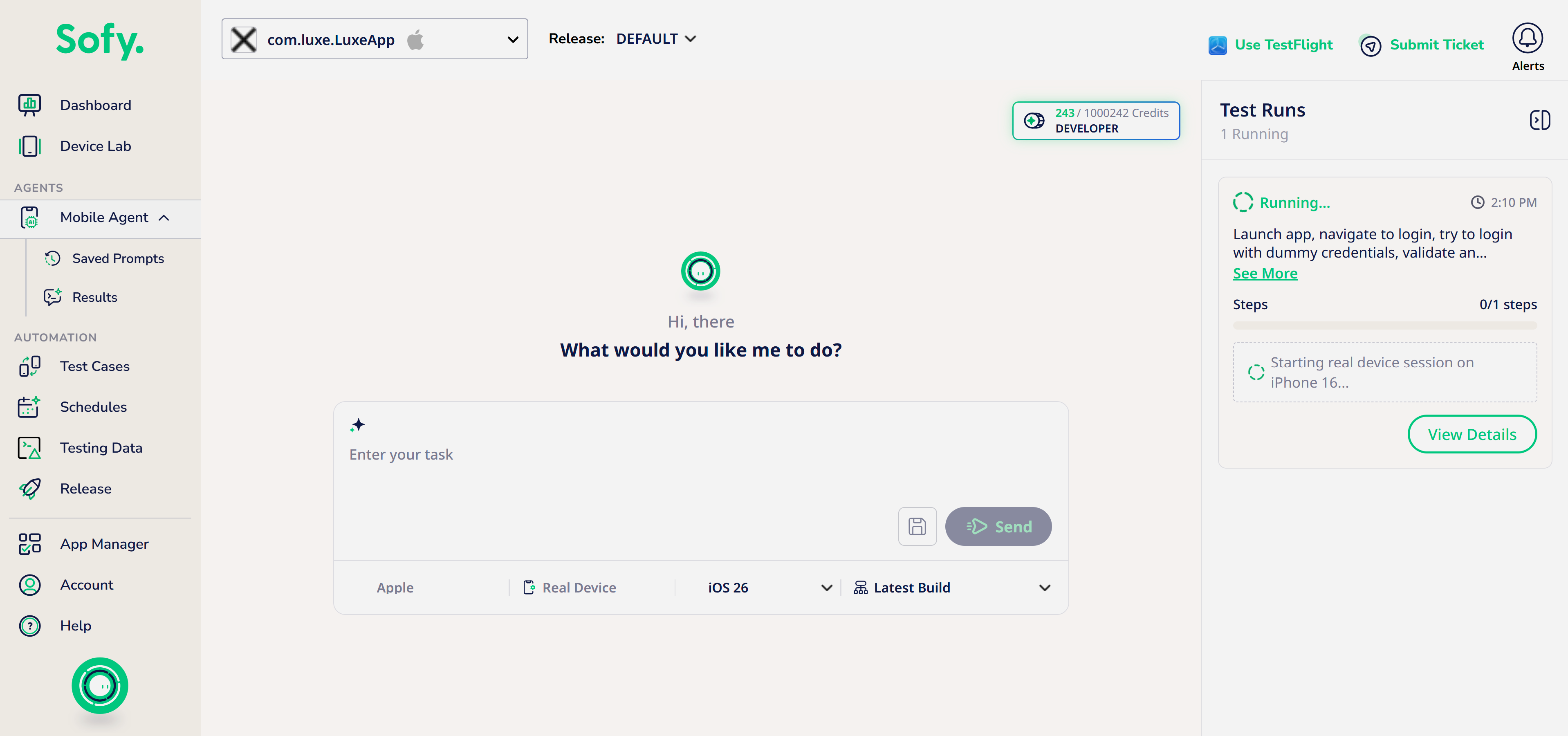
- Open Mobile Agent from the left menu.
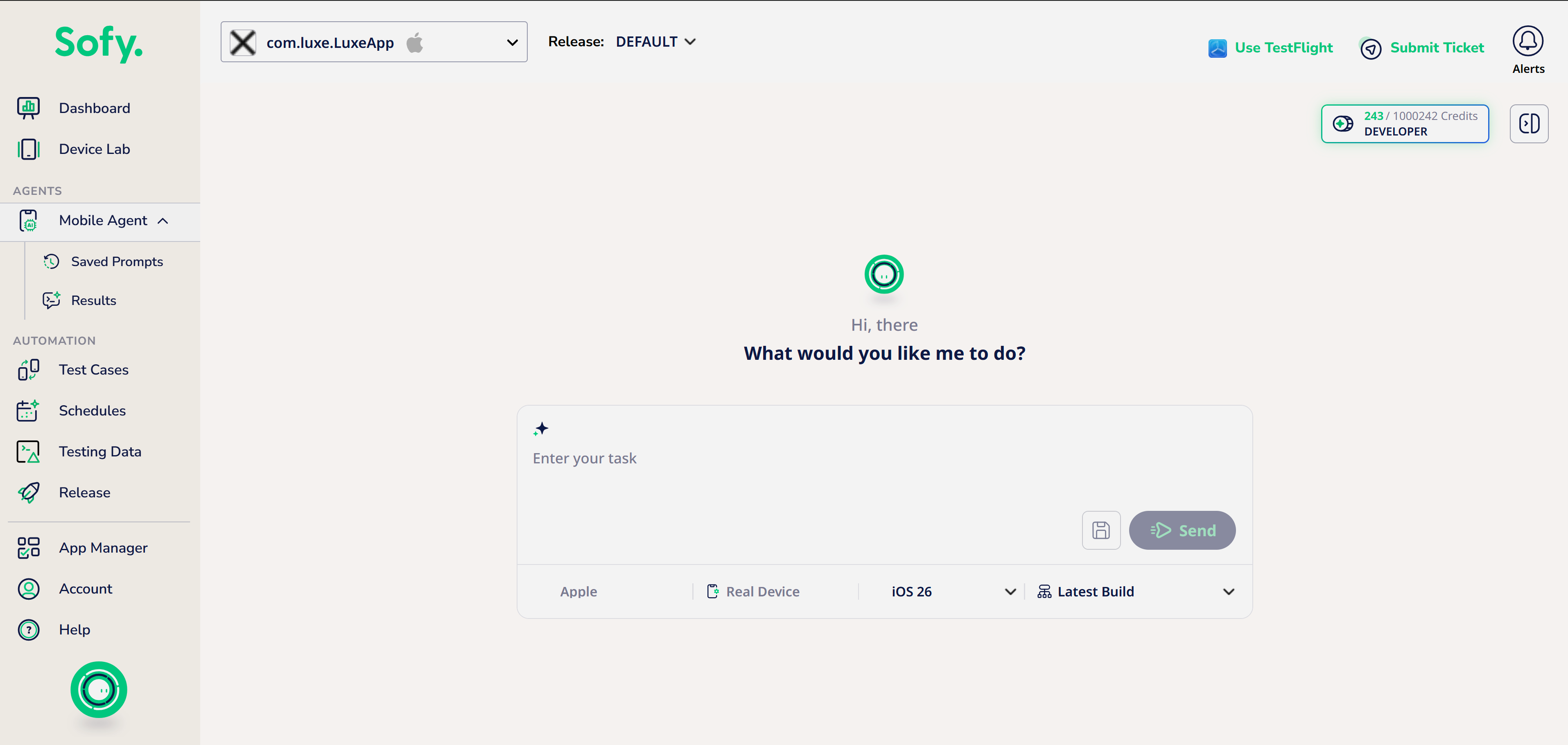
- Select your Application.
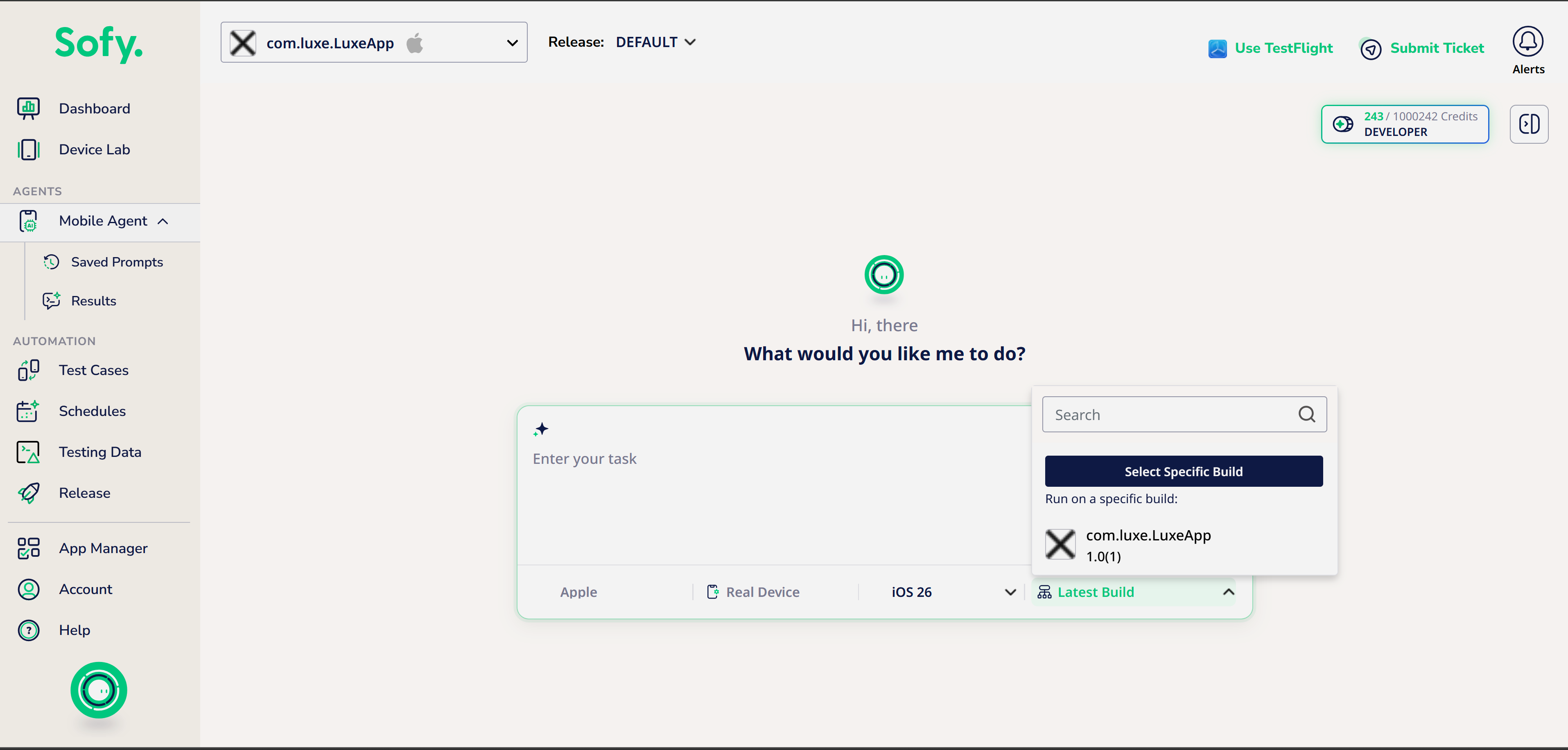
- Select a Build. If you don't choose one, the agent uses the most recently uploaded build.
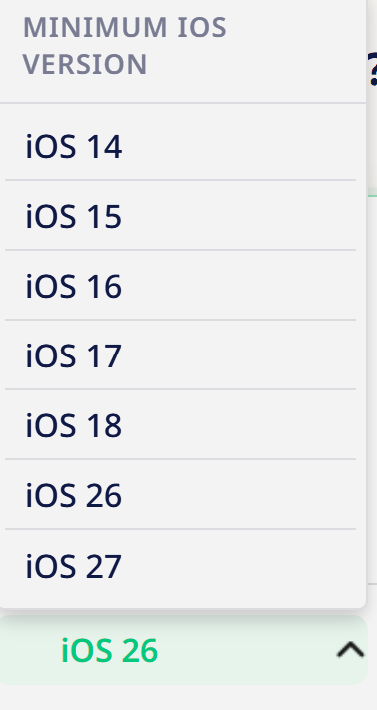
- Select a Device (brand and OS version). Only devices that are available now are listed.
- Enter your prompt in the text box. Write each instruction on its own line.
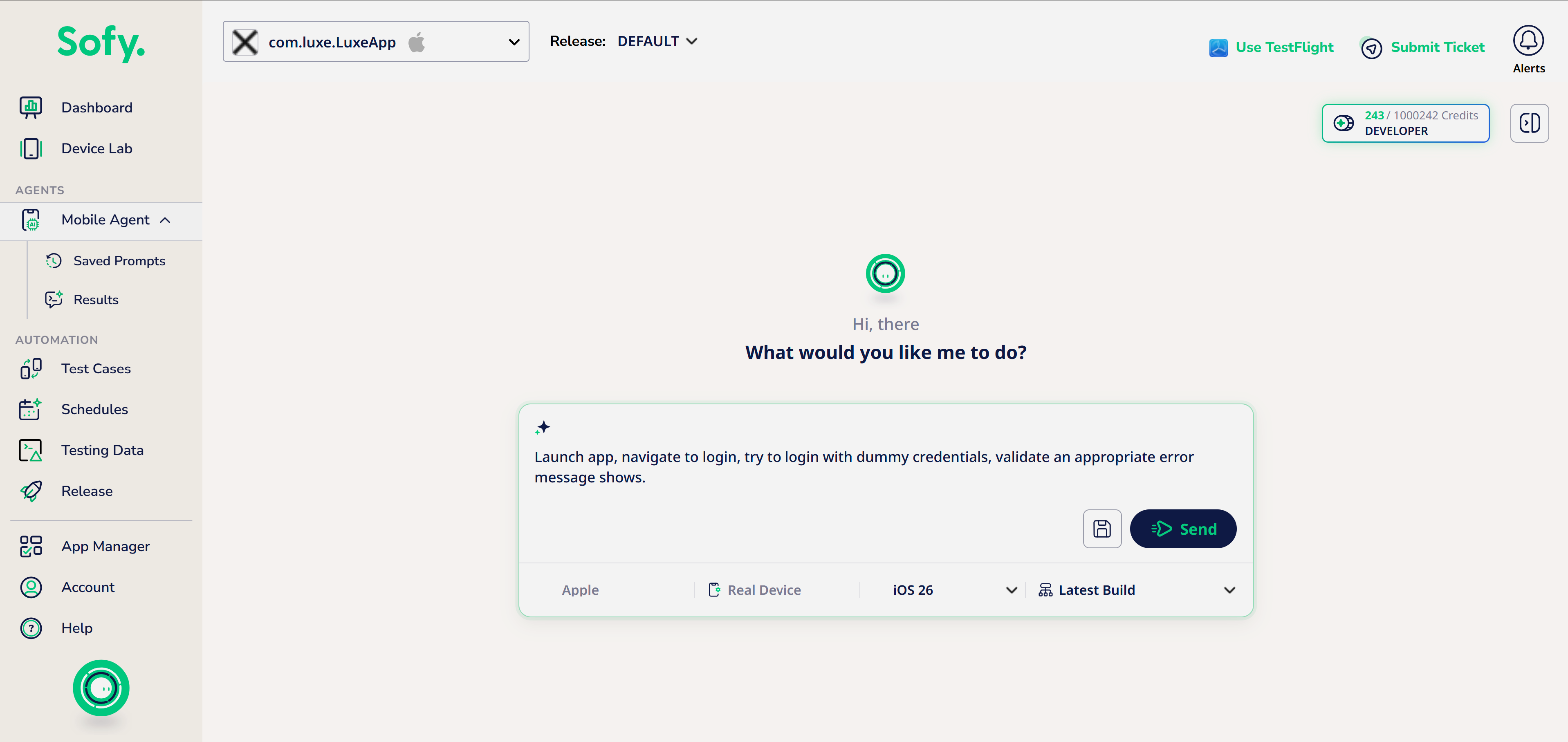
- Click Send.
The run starts on the device, and you can watch progress while the agent works. When it finishes, the result shows as Passed or Failed, with a link to the full run report.
Write prompts that pass reliably
Tap Sign In
Enter the email and password and Tap on the Proceed button
Verify that the home screen shows "Choose your car"
- Say what success looks like. End with a check such as "Verify that the cart shows 2 tickets". Without one, the agent can only report whether it finished the steps.
- Name things the way the screen does. Use the visible label ("Men's Clothing").
- Say when to wait. For slow screens, add "Wait until the park list appears" before the next action.
- Be specific when a label repeats. For example, "Tap the Sign In button", not the Sign In heading above it.
Keeping track of your credits
The credits indicator in the top-right (e.g. 6 / 100 Credits — PRO) shows how much of your plan's Mobile Agent usage you've consumed. Each task run draws down from this balance.
Tips for writing effective task prompts
- Be specific about test data: phone numbers, OTP handling, coordinates, or addresses you want used
- Break multi-stage flows into clear, sequential instructions (e.g. login → set location → place order)
- If you want a specific value captured at the end (like an order ID), say so explicitly — the Agent can save it for you
