View Mobile Agent results

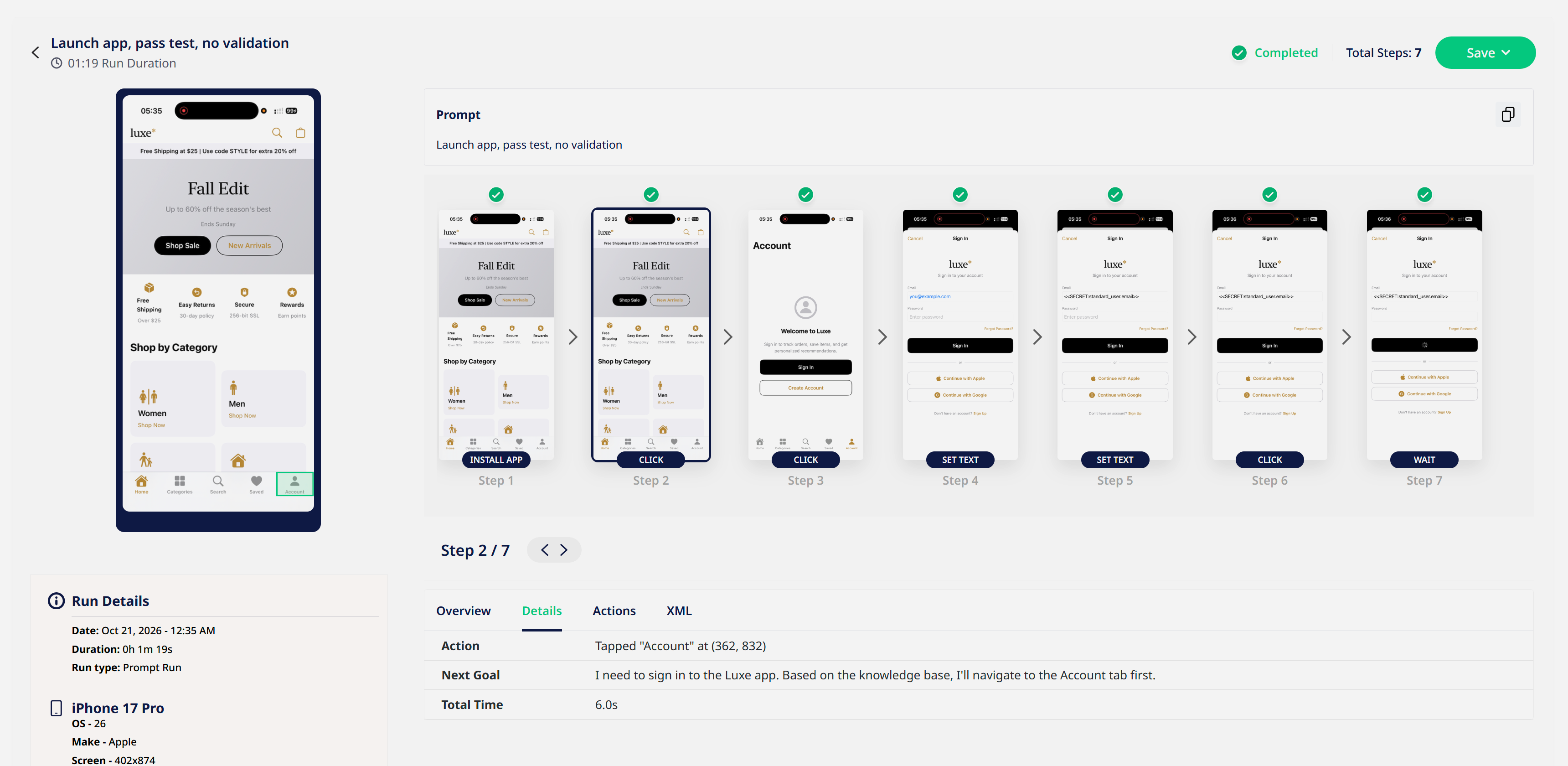
Every Mobile Agent run gets a run report that shows each step the agent took, so you can see where a flow passed or why it failed.
Find your runs
- Open Results.
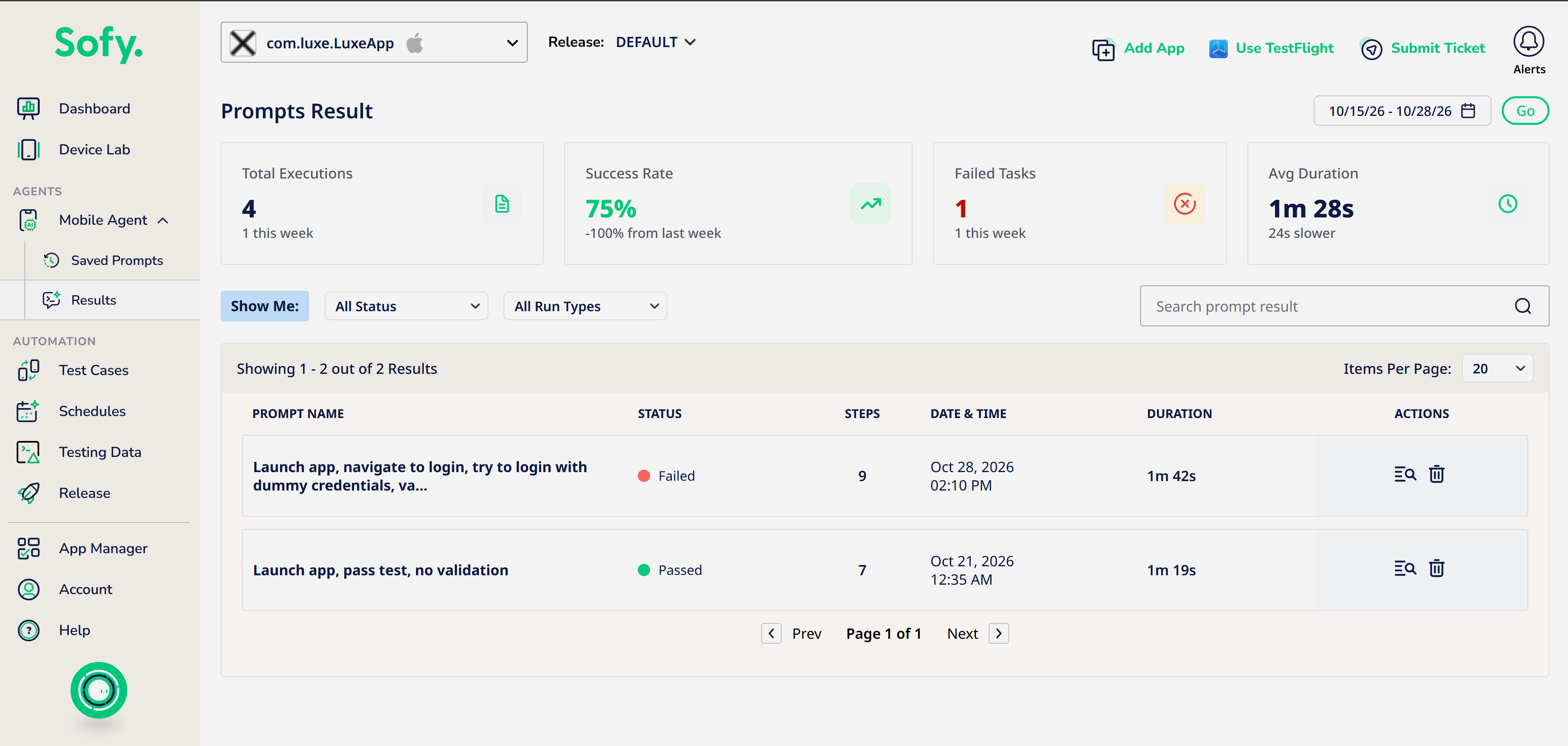
- Click a run to open its report.
Read the run report
- Summary: the result (Passed or Failed), app, build, device and OS version, and the number of steps.
- Steps: each action the agent took (tap, type, scroll, verify), with its screenshot.
- Step details: what the agent saw and why it chose the action.
- Timeline: follow the run without opening every screenshot.
Why a run failed
Open the first failed step. The common causes are:
What you see | What it usually means | What to try |
The agent tapped a heading instead of a button | Two elements share the same label | Name the element in the prompt: "Tap the Sign In button" |
The run stopped with a message that it ran out of steps | The flow is longer than the step limit | Split the prompt or raise Max Steps |
The agent acted before the screen loaded | The app was slow to show the next screen | Add "Wait until … appears" |
A verify step failed | The expected text isn't on the screen | Check the wording against the screenshot |
