Slack Integration

Sofy can notify your team in Slack the moment a scheduled test run finishes, so you don't have to keep checking the portal for results. Once connected, completed runs post directly to the Slack channel of your choice — with full run details included.
Slack notifications are configured per application and per schedule, giving you control over exactly which schedules notify your team and where.
This integration is currently made available on a need basis. If you'd like Slack notifications enabled for your account, reach out to your Sofy customer support (customersupport@sofy.ai) to request access.
Setting this up takes two steps: connecting your Slack channel to the app, then enabling notifications on the schedules you care about.
Step 1: Connect Your Slack Channel
- In the Sofy portal, go to App Manager and select the application you want to connect.
- On the General tab, find the Slack Webhook URL field.
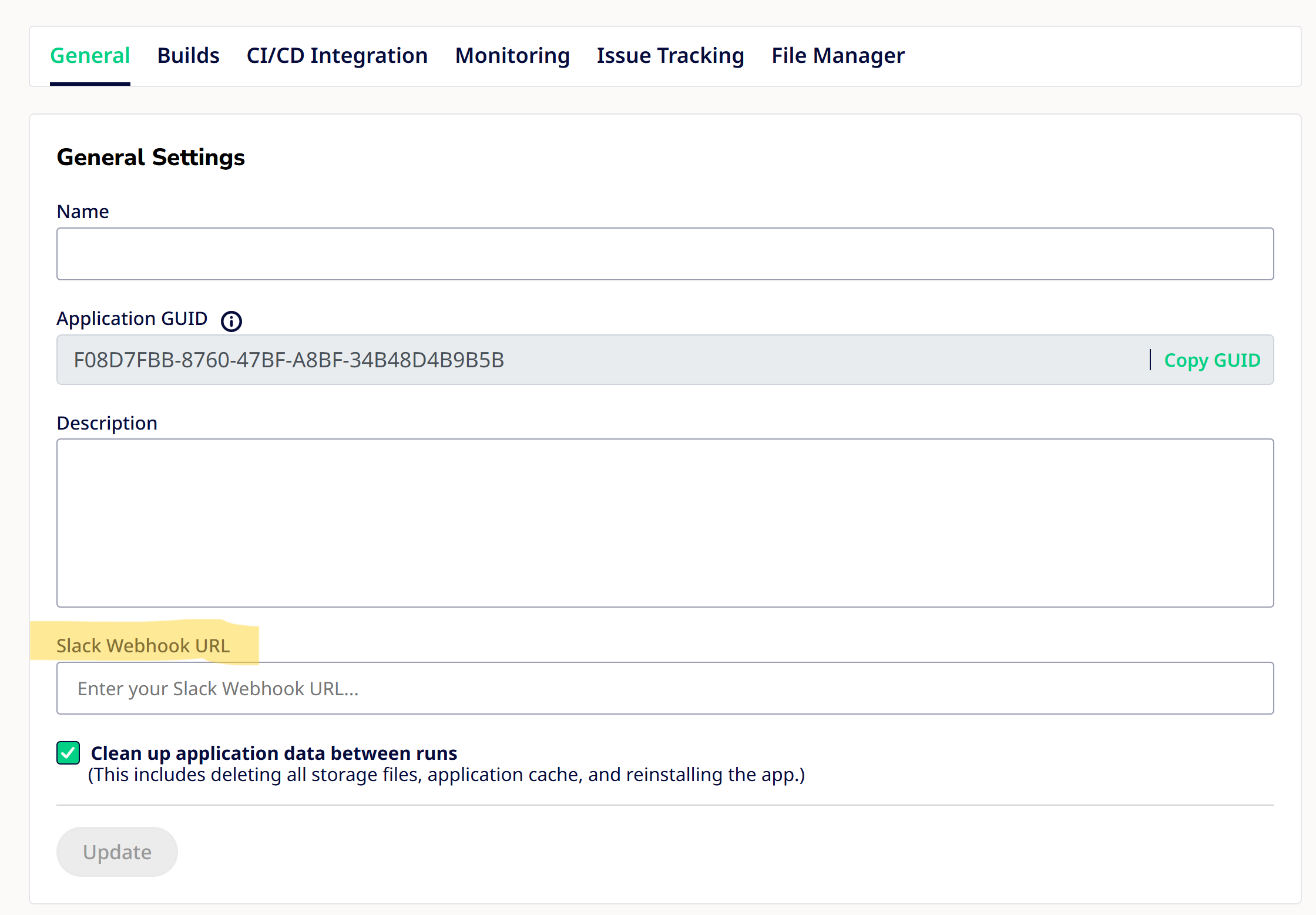
- Enter the Slack webhook URL for the channel you want notifications sent to.
- Click Update to save.
Repeat this for each application you want connected to Slack. Each application can only be linked to one Slack channel at a time.
Step 2: Enable Notifications on a Schedule
Once your Slack webhook is saved, you can turn on notifications for any schedule under that application.
- Go to Automation > Runs and Results.
- Create a new schedule, or open an existing one to edit it.
- Step through to Step 3 - Confirm and Schedule.
- Under Run Settings, toggle on Send Slack Notifications.
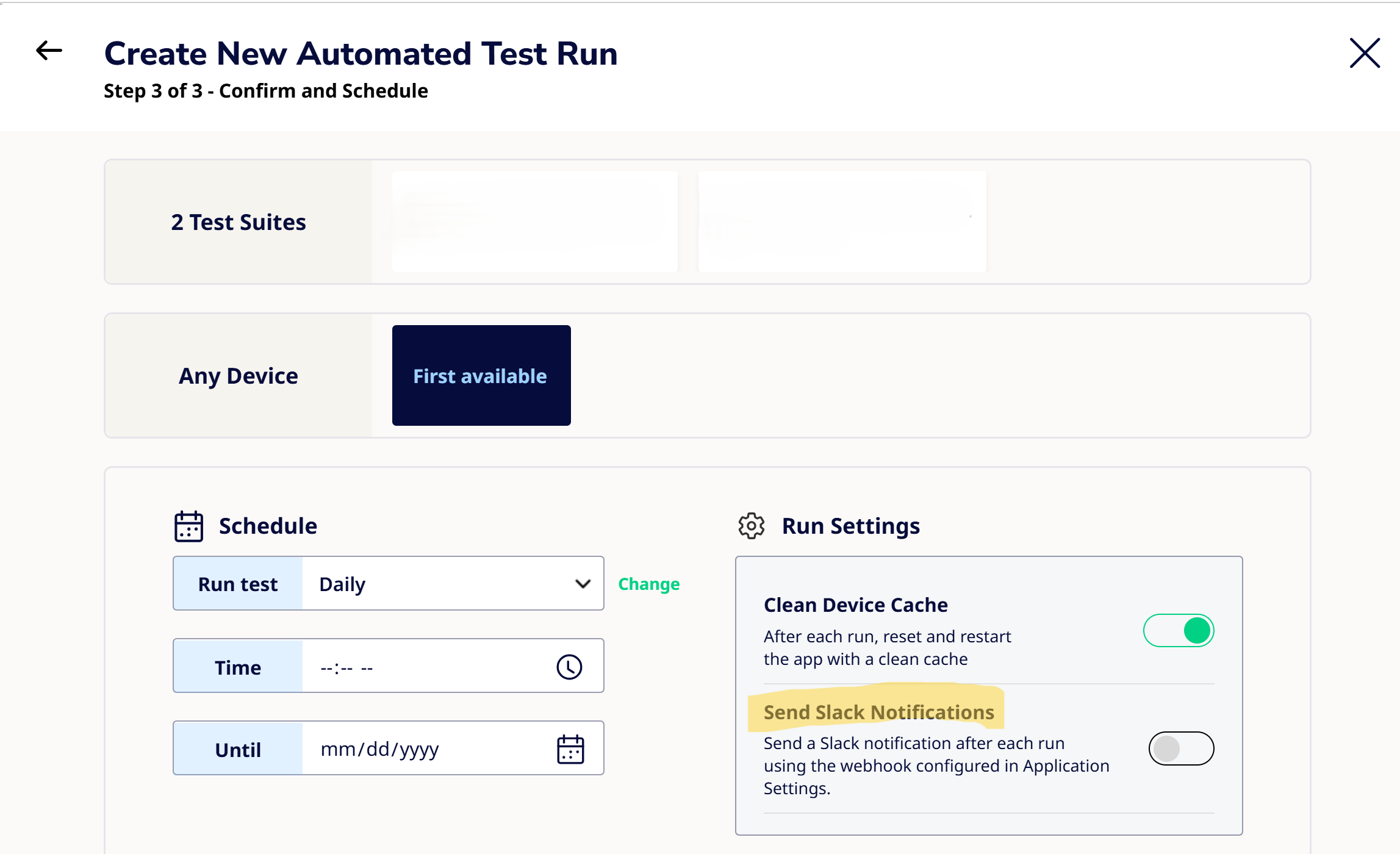
- Save the schedule.
You can leave this toggle off for schedules you don't need updates on, and on for the ones that matter most — giving you full control over your Slack channel's signal-to-noise.
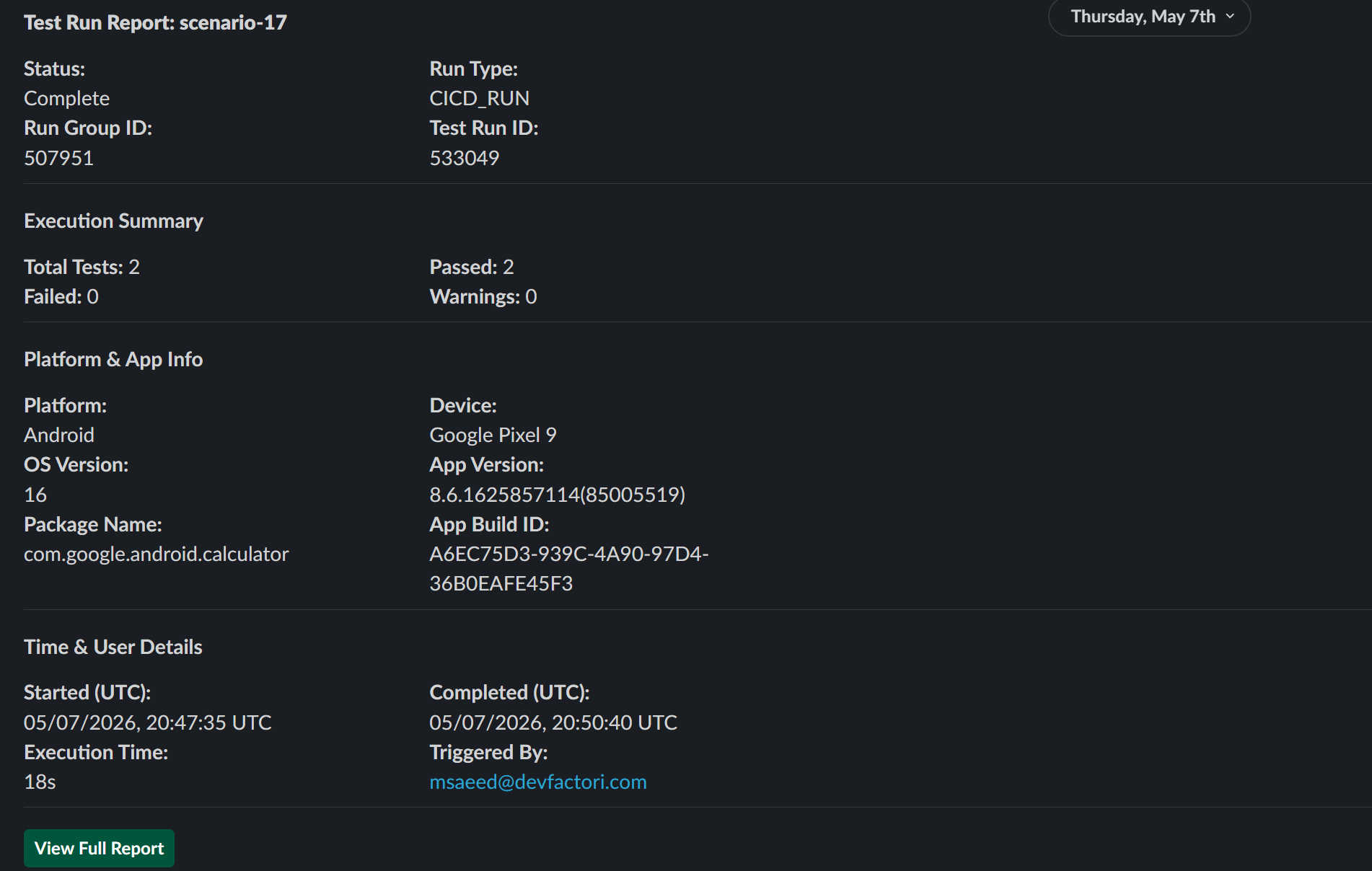
What You'll See in Slack
When a schedule with notifications enabled completes, Sofy posts a message to the connected channel with the run's details, so your team can catch results and failures without leaving Slack.